Featured Post

Avoid Quarter 2 Blues: Save Time with a new Google Classroom

For those of you ending the quarter, now is the time to create a new Google Classroom for each of your classes. Organizing new classes will...

Showing posts with label Technology. Show all posts

Friday, April 28, 2023

Do you like free stuff? Scholarships and Edtech Updates.

Free Stuff!

First, because the deadline is April 30, have you thought about professional learning this summer? The Modern Classrooms Project has a limited number of scholarships (a $750 value!) available for their Virtual Summer Institute, which provides self-paced learning and networking opportunities for five weeks, along with individualized coaching from Expert Mentors who use the model. If you want to learn more about using blended learning to increase student mastery and make teaching more enjoyable and sustainable, check out this AMAZING opportunity! 
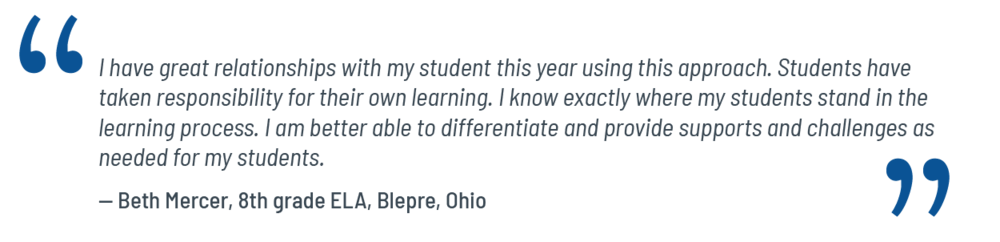
Special scholarships are also available for special educators!

EdTech Updates

Canva now has Magic Write and Magic Design. 
These AI tools are a great way for teachers to start documents and presentations fast...but it is also a tool students might be using, so teachers need to be aware. Here's a walk-through of how Magic Write works:


If you haven't tried Canva, educators and students can use it for free! It has expanded to include so many capabilities for document design, visuals, and video editing that it is worth checking out. Let members of TLI know if you would be interested in professional learning on this.


Flip now has a Reading Coach in Immersive Reader!
Looking for kids to get feedback on their oral reading? Then this might a tool for you. Check out how it works in this video:

And, even if you just want to have a tool to read text aloud to students or support student reading, consider using Flip and the Immersive Reader to support student learning.

Do you use Newsela? The paywall is rising...

Beginning this summer, users with free Newsela accounts will only have access to a handful of current event articles each month, selected by the Newsela team. One article will be released a week, and articles will disappear after four weeks. The company shares that "Our full catalog of 8,000+ leveled news and current events articles will only be available in our premium products."

Thursday, March 30, 2023

Just Escape


Escape rooms aren't new, but they are a game-based learning technique worth dusting off when review threatens to get stale. Kids as young as preschool can find success with these tasks when provided the right modeling and support!

The Benefits

We recently observed a 4th grade teacher using an escape room in math to review place value/rounding. In addition to the benefit of the task being fun and academically engaging, the teacher and students experienced additional academic and SEL benefits. According to the teacher:  

One of the greatest parts about using the [digital] escape rooms is the computer knows the correct answer so the students are provided with direct feedback as to whether their response is correct or incorrect. This allows for me to be able to assist students without having to provide each student in the class with feedback (checking their work immediately).

Students love the challenge of attempting to "escape" and they dive right into each escape room, determined and ready to solve any problem. I typically have them work in partnerships/small groups in order to be able to discuss and share their thinking. Many times, there is quite a bit of dissonance taking place and I absolutely love it. I am consistently telling them to persevere and they own it!

This aligns with the research: in addition to supporting motivation, game-based learning contributes to stronger problem-solving skills, language development, memory, self-esteem, and cooperative work skills.

Planning an Escape

https://ditchthattextbook.com/30-digital-escape-rooms-plus-tips-and-tools-for-creating-your-own/

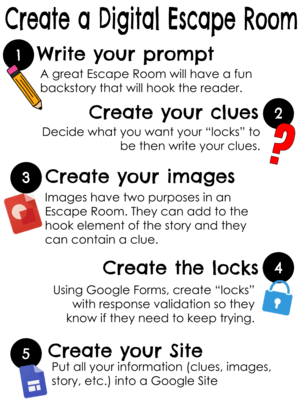
There are many pre-made escapes and templates you can use to build your own escape room, such as those that use Genially or Google forms or Google sites.

But really, before doing any of that (admittedly fun) stuff, be sure you have a clear picture of the skills you want your escape room to test: what is the focus? How will the applications show student mastery of the concepts and skills you have been covering in class?

If an escape room sounds like something you want to do, someone from TLI would love to support you in the planning process, whether it is helping with the template, the plan, or even just connecting you with another teacher who has used an escape room in your content area or grade level.

Game on!

Thursday, March 9, 2023

Have you visited the TLI Website lately?

NWEA MAP season is almost upon the teachers and students of Griswold, and that means it's time to dust off that handout reminding you about how to administer testing. 

But if you lost your handout, remember that there is another way to access not only those directions, but tutorial videos and other resources of value: the TLI website!

GPS staff can access a wealth of resources that are specifically targeted to our teachers and support staff (often with student support materials too!). And while the homepage might largely look the same, updates are made regularly to each page, with new resources to support curriculum, instruction, templates for blended learning, and support for SBAC IABs and NGSS Interim tests as well. In fact, coming next week are some tutorials for downloading your data and using Excel or Sheets to quickly analyze it. Templates will be shared too!

It's worth setting a reminder to check the TLI website for news and updates every month or so. To find out what's new, in addition to looking at the instructional spotlight, you can click on the "News & Updates" tab to see what's been updated (and to see the archives of the Spotlight, so you can clean out your email). 

What kinds of resources are you looking for? Add a comment below, and the TLI team will respond!

Friday, March 3, 2023

The Triple E Framework: Is it worth it?


Whenever a new educational tool comes out, we're often asked by teachers if it is worth it.

And that makes sense. It usually takes at least some time and effort to learn a new tool, and if a teacher not only needs to learn it, but to teach it, then that tool better be worth the time investment.

But often times, knowing if a tool is worth it or not has more to do with the teacher/student needs and goals than with the tool itself.

A recent ISTE blog post made the point that,
"Technology, when integrated seamlessly, should make teaching and learning easier to access for both teachers and students, and when it doesn’t, then everyone suffers."

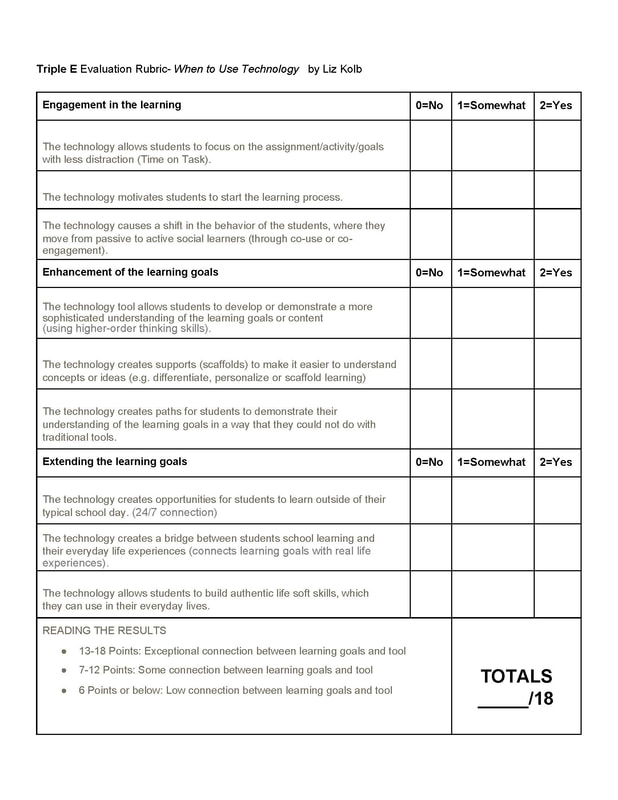
At the latest ISTE (International Society for Technology in Education) conference, many people were talking about the Triple E Framework for evaluating how well technology tools fit into a lesson. The idea is that the learning target comes first. Then, the teacher considers how well the planned tool will help students engage with, enhance, and extend that learning goal. 

The framework is pretty simple to use, and the creator even made an online tool that allows you to quickly and easily evaluate your technology. Take a look, and see if this inspires you as you plan to use technology to level up your learning.

Friday, February 10, 2023

Can you smell what the podcast is cooking?

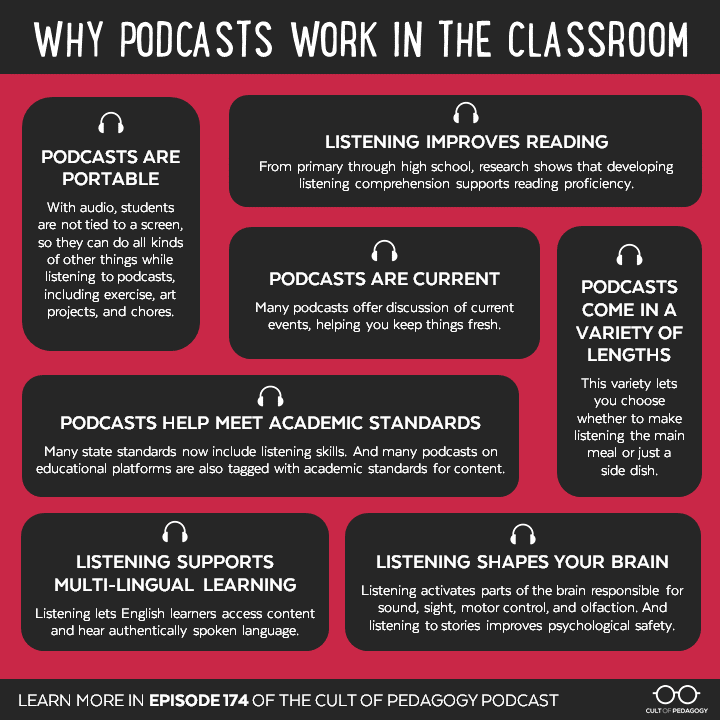
Science suggests that as you listen to a podcast or radio show about cooking and you hear the sizzle of the stove as the broadcaster describes adding garlic, the smell center of your brain will light up, activating memories and prior knowledge. You might actually SMELL the food cooking. 

https://www.cultofpedagogy.com/podcasts-in-the-classroom/


Audio, and podcasts in particular are powerful in the classroom for so many reasons:

Other benefits? You can often speed them up, slow them down, or use tools that read along with transcripts to increase accessibility. TED Talks on the TED platform include transcripts in multiple languages, which highlight as the speaker talks.

How can I use them?

  • There are many short (under 5 minute) podcasts for kids. These might be a great warm-up once a week, with the class working on retelling, identifying key information, or just brainstorming questions about a topic or current event.
  • You might use longer podcasts as part of a station rotation to build prior knowledge or provide more first person, non-fiction accounts of events.
  • You might use podcasts to appeal to different learning modalities, giving kids the option to listen to sources rather than simply reading all of them.
  • You can create IAB-style comprehension questions to help students practice for the listening part of the SBAC test, and discuss the techniques students used during listening. Kids can listen and discuss  individually, in small groups, or as a whole class.
  • You can use them to model, guide, and have students practice the note-taking skills you teach.
  • Have students write (or use flip to record) the connections they make between the current events from the audio to the historical events, general science topic, or other concepts they are learning about.

For links to elementary-age podcasts, check out this resource.

For more research, check out the Cult of Pedagogy blog/podcast about using podcasts.

For more ideas, listen to or view the video podcast from Truth for Teachers.


Friday, February 3, 2023

Supporting Student Digestion (of Content)


In Catlin Tucker's recent episode of her SEL series of the podcast, The Balance, she talks about how important Self-Management is to student development, and how vital it is that we provide students with opportunities to make choices.

One research-based and easy way to do this is to provide students opportunities to monitor their own progress through checklists. Chunking big assignments into smaller pieces is often a recommendation on individualized student plans, and this makes sense: just as we wouldn't do well shoving a whole candy bar in our mouths at once, our students won't digest the task well if we ask them to conceptualize it all at once.

Additionally, education specialist Dr. Kathleen Dudden Rowlands believes checklists are more than just a way for students to stay organized and on-task: 

"Metacognitive research consistently suggests that students who know how to learn, know which strategies are most effective when faced with a problem or a task, and have accurate methods of assessing their progress, are better learners than those who don't."

So what to do?

Option 1: Provide Assignment Checklists

If you already know the steps to take for students to successfully tackle a task, why not give them a checklist? Many teachers do this for longer assignments anyway, but this can also be valuable for daily assignments. This can even be done "on the fly" for individuals in need.

Option 2: Support Students in Creating their own Checklists

Not only is breaking tasks down an important life skill, but it helps students grasp the scope (and best sequence) of the task at hand. You can scaffold this by providing a partial checklist, with students brainstorming minor tasks under a major heading, or even by creating the checklist together as a whole class or in groups. 

If you want a lesson plan idea for supporting students in breaking down directions, check this out. If you want to support students by using technology, be sure to include some time to model the tool!

Technology tools to try:

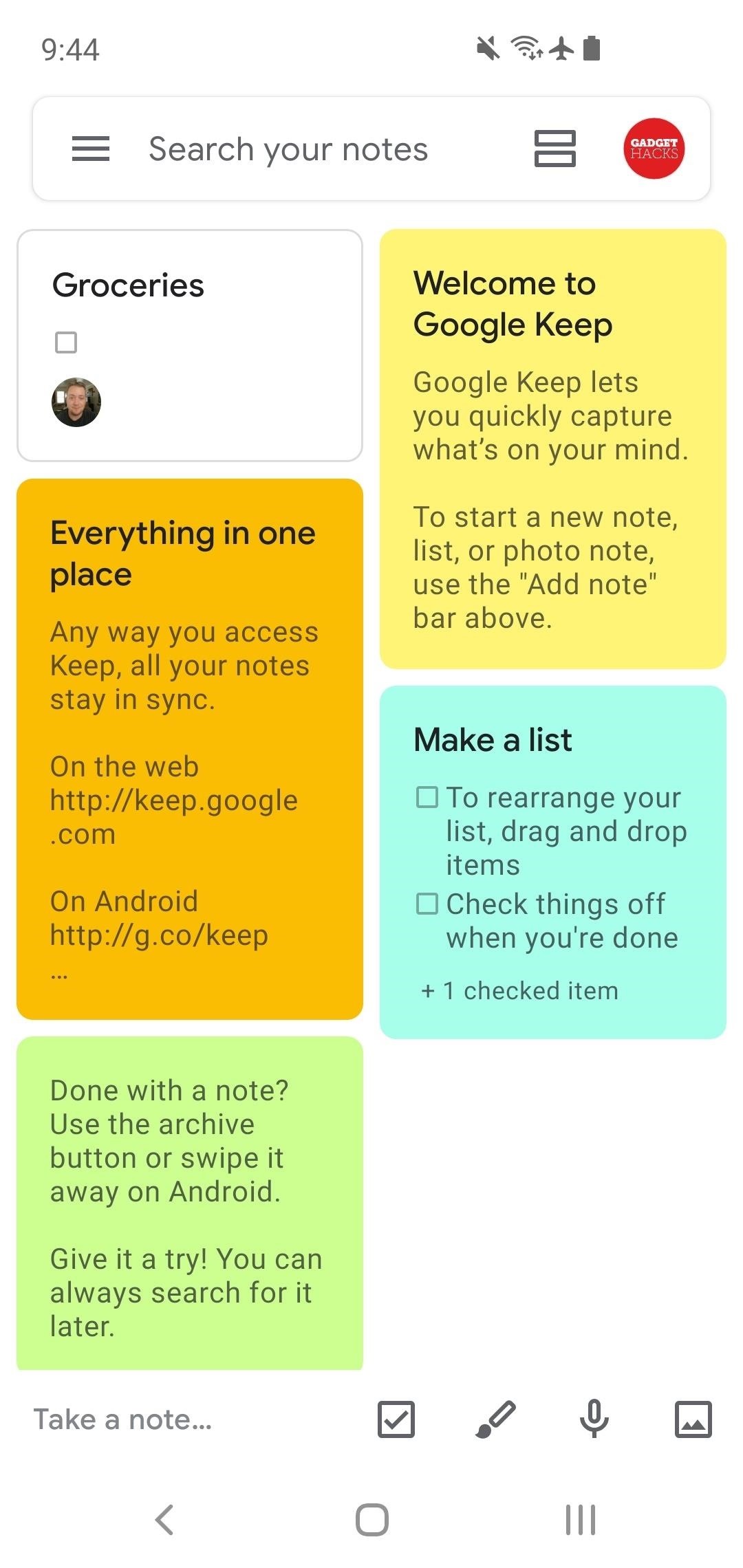
Are kids mobile? Kids can use Google Keep, which is great for use on computers and mobile devices, quickly saving content, and collaboration. (Learn more about using Google Keep with students at ShakeUpLearning.)

Is the task big? Students might also use Google Sheets for a more involved project. Each part of the task can have its own tab and set of checklists. TLI also has some templates that you can provide students that cross items off the list when the box is checked AND show progress in a progress bar.

Want to keep it really simple? Google docs has also just made it easier to create and use checklists, which allows for students to check and cross out items (or uncheck, if they realize it isn't done). Check out the 2 minute tutorial below that shows a few ways to make checklists!


A note about behavior: Do you have students who might benefit from an academic behaviors checklist? Enlist them in creating their own self-management goals for the day with this tool from Intervention Central.

Thursday, January 5, 2023

Technology Hacks, Especially for Littles: Use Audio, Video, and Pictures

A few teachers have mentioned a stumbling block for using powerful formative assessment tools are that their learners need more supports. Lots of written directions won't help emerging readers. Having to type a lot won't work for students still learning keyboarding. 

But oftentimes, these roadblocks can be overcome! The benefits of using the technology are great, and with a few tricks or hacks, teachers can speed up the process and reap those benefits. Here are a few, designed especially for younger learners or other students who might need more supports:

Issue: You want to use an online tool to assess students, but students don't have the reading (or perhaps typing) skills needed to complete the online assessment/activity quickly.

Idea #1: Flip

Flip, formerly known as Flipgrid, is a free tool that allows students to respond to prompts--either written or video--with audio or video. It also allows for students to give responses to the recordings of their peers, if the teacher chooses, and for teachers to give recorded feedback. Flip includes quiz tools as well as many other ways to engage students in learning. 


Flip has Immersive Reader built in, which can read text out loud, and Flip has enabled more supports to help younger learners record their voice and/or video response. According to these PreK-2 tips, teachers can use QR codes to support student sign-in to topics. If this sounds like something you are interested in, TLI would love to help you realize your vision!

Idea #2: Google Forms

Google Forms are one example of a powerful tool for formative assessment. Google forms allows you to insert video, which is great for sharing audio and visuals. It also allows you to use pictures as answer choices, which is especially powerful if you just need students to give a prompt a Thumbs Up or Thumbs Down. You can also use the MOTE chrome extension to easily add audio to quickly record yourself OR to have students record themselves giving a longer answer.

Idea #3: Mote

Note that you can also use MOTE to allow students to record themselves in other Google documents, like slides, as in this example of a See-Think-Wonder activity (click to access the demonstration and slide template). Although GPS currently only has the free version of MOTE, which limits recording, the tool has a lot of possibilities for quick and easy audio recording.

BONUS: You can use the MOTE extension to create guided reading experiences (which might be faster and easier than creating audio with media creation tools like Screencastify). The video below shows how this audio tool can be used in 4 different ways to support learners, with the focus on upper elementary or secondary learners who might need more supports:


What tools do you use to make assessment more accessible and flexible for your learners? What challenges do you foresee having to work through that others might have solutions for? Let us know in the comments.

Wednesday, November 16, 2022

Dicebreakers: Using Virtual Randomizers to Foster Collaboration

At this week's TLI Committee Meeting, the team highlighted ClassroomScreen as a tool worth using. While we've written about ClassroomScreen before, recent discussions with teachers have highlighted a few needs that this tool can meet with very little effort from teachers. (For more, check out the updated TLI EdTechResource on ClassroomScreen.)

But the real story is that in checking out the ClassroomScreen twitter account, the team stumbled across an engaging idea with many ready-made templates that is EASY to use to foster student collaboration, critical thinking, and bonding: dicebreakers.

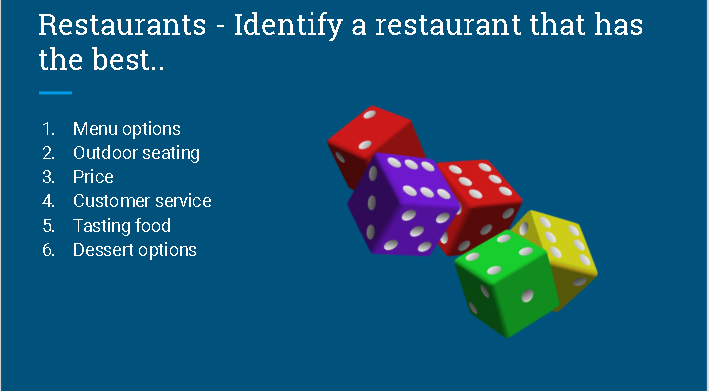
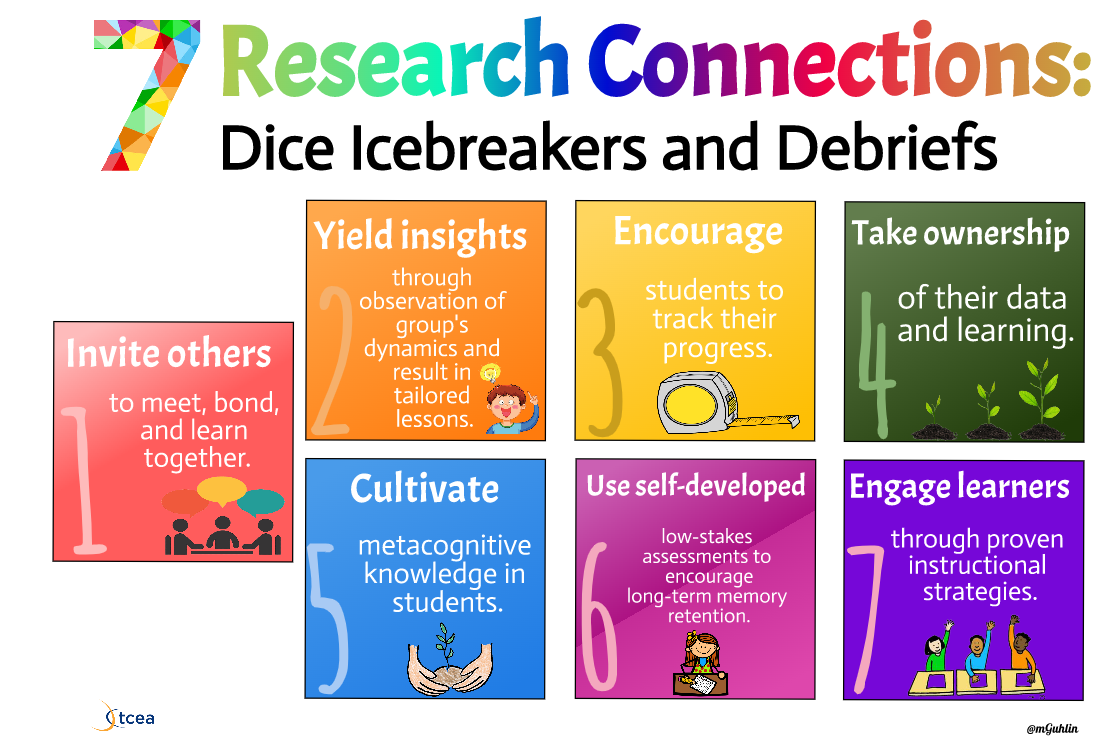
There are many icebreaker resources available online that use dice to spice up getting-to-know-you activities (like this free template), but the TCEA blog showcases many other ways that dice can be used to get students talking and working together. Essentially, dicebreakers allow students the opportunity to brainstorm and talk through their ideas about different parts of a topic without having to discuss the same concept. Using physical or virtual 6-sided dice, this activity provides six different, yet related, talking prompts that encourages in-class discussion. This could be unrelated to content, as with a traditional icebreaker, or it could be related to your business unit!

But the TCEA blog highlights other uses for dice activities that include ideas for debriefs and ready-made templates. Check out their extensive blog post and see which ideas you can use in your classroom next week.

Want more ideas for using dice in the classroom? Check out this post for using giant dice for whole class fun and this WeAreTeachers post for additional ideas to using dice to spice up ELA, math, and even music lessons.


Friday, November 4, 2022

Jamming with Jamboard

If you haven't had much experience with Jamboard, it is basically an online whiteboard that is part of the Google suite. It works well on your Smartboard, Chromebooks, and other devices, and you can learn more about it here.

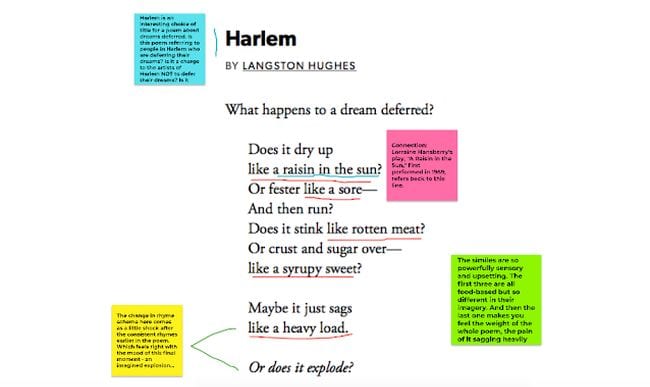
If you use Slides for many things, as I know many teachers do, then it would be logical to wonder why Jamboard would be worth learning and integrating. One compelling reason is the drawing functionality. Unlike slides, the drawing tools on Jamboard allow for easy annotation:

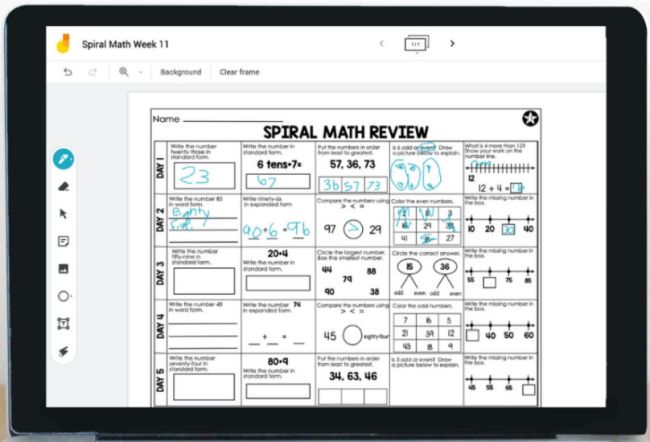
While this many not be compelling without a touch screen, if you have a Smartpanel, this allows you to take notes on a worksheet or picture without much more effort than pasting a screenshot or scan on the board:


Jamboard also allows you to keep adding new screens to a Jam, so if you wanted or needed to save and upload all the notes from class to Google Classroom, this process becomes a snap.

While many teachers don't recommend having the whole class on one Jamboard at the same time (no version history = less accountability), it is great for small group collaboration or organizing quick teacher-directed whole group activities.

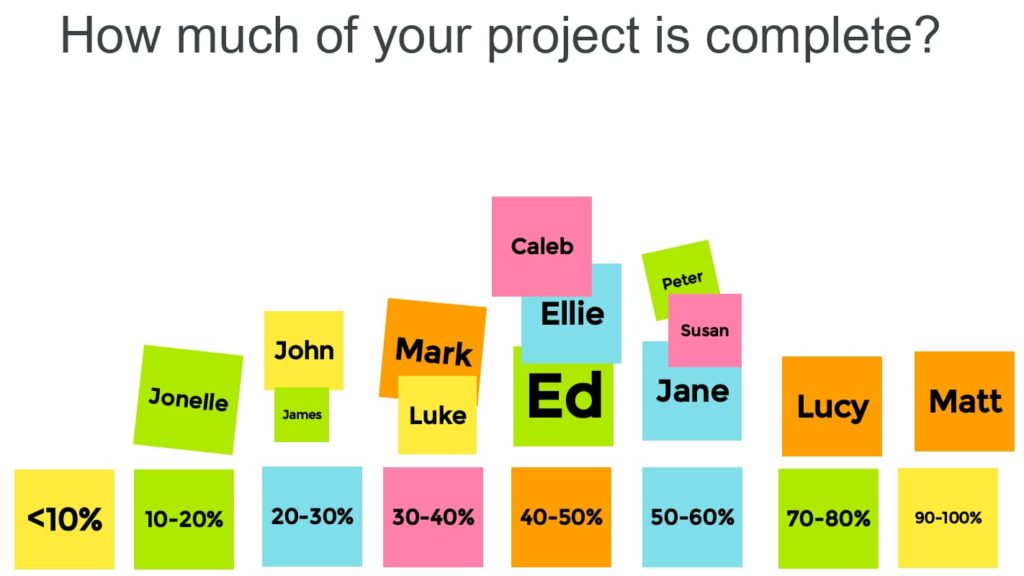
The sticky note function makes it easy for students to quickly contribute and organize ideas. This idea from Chromebook Classroom is so simple, yet it is useful for teachers as formative assessment data:


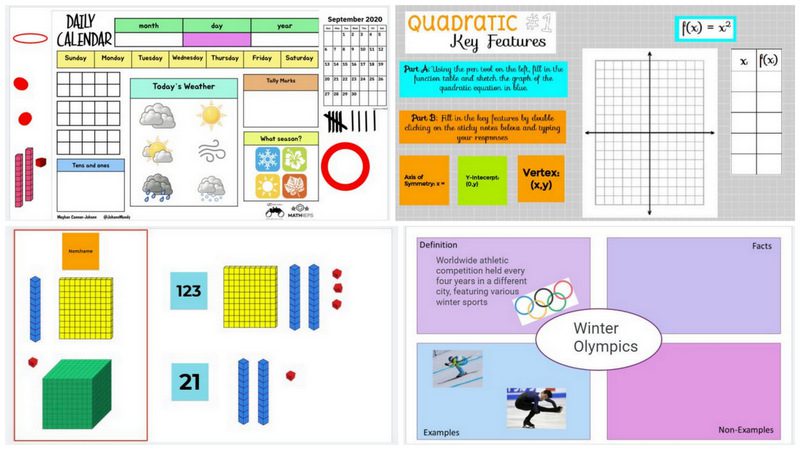
Jamboard makes it easy to manipulate objects on a screen, and if you check out this post from We Are Teachers and this post from Ditch That Textbook, you will find over 40 ready-made templates and ideas that will increase collaboration, manipulation, and accessibility. Why reinvent the wheel when someone has shared a Freyer model template or already made number cubes and calendar items?

If you are looking for something new, or you are just looking to save some time, check out the Jamboard templates that people are sharing.

If you want more ideas, you can also check out this free ebook from DitchThatTextbook with 10 Jamboard lesson ideas and templates.

Friday, October 28, 2022

WOW your Parents, Streamline your Practice

Parent-Teacher Conferences are coming up fast, and with so many options for connecting with parents, it helps to think about how you can use technology to streamline your preparation and leave your parents impressed.

Scheduling

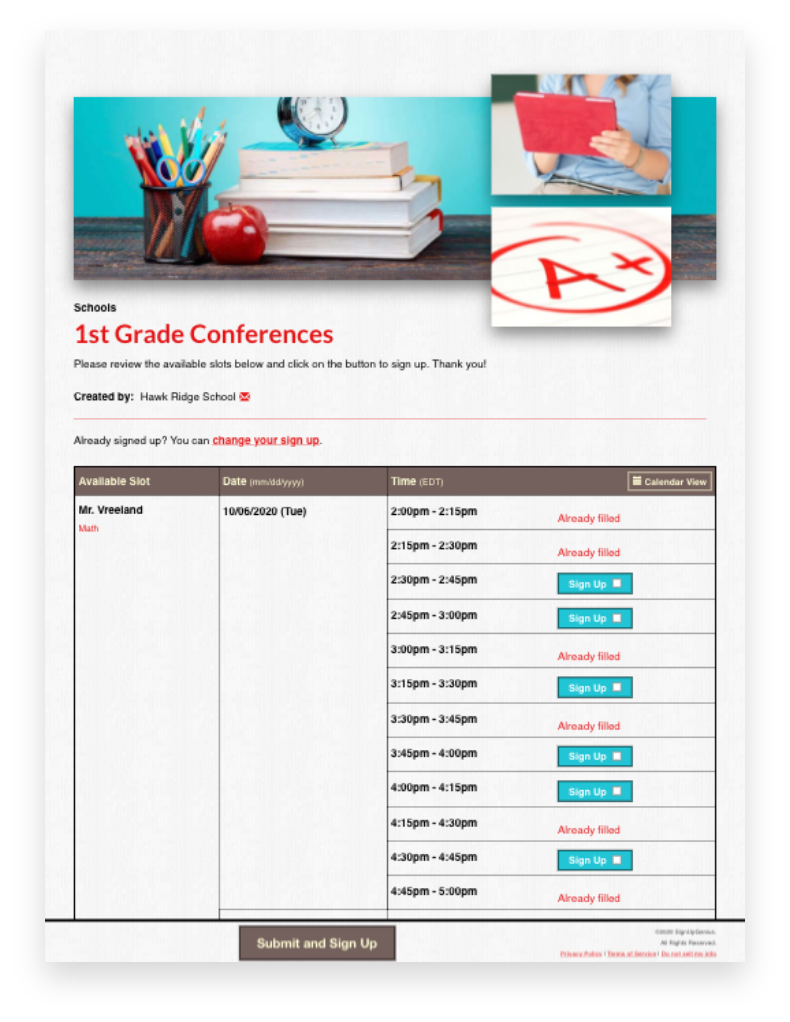
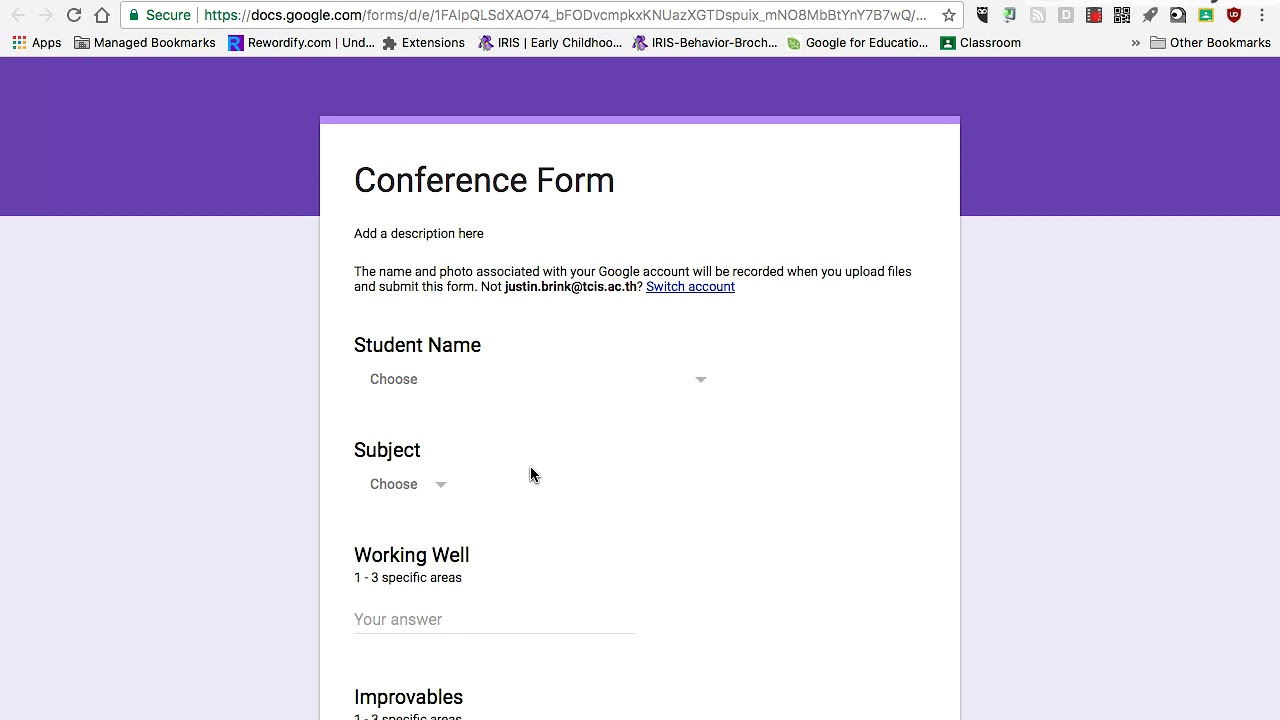
While Sign Up Genius continues to be a favorite for scheduling parent conferences, you can also use Google forms and Google calendar to set up appointments and share Meet links if parents are joining virtually. (For more on using Google forms with parents, see our previous post.) 

Online scheduling is great because it eliminates the "middle man" problems associated with sending papers back and forth. Additionally, using online appointments makes it easier for parents (and teachers!) to schedule, especially if they are coordinating conferences with multiple teachers. And of course, parents can always call/email and you can help them use these systems!

(As another a time-saving tip, printing out your electronic calendar or sign up is a great way to streamline sharing your conference log with your building administrators.)

Showcasing your Classroom

While open house is the best opportunity to allow parents to "see" what their kids experience every day, not every parent can make it. In advance of conferences, you can share insight into your class using digital tools. Several teachers have done virtual tours (check out this example from GHS!), which are not only great to record for parents, but also work great as an introduction for new students. 

And, if you want to empower your students and share the load, have a student tour challenge that asks your kids to collaborate to create a tour and/or compete to see who creates the best tour video.

Showing Student Work

Parents LOVE seeing what their students are doing. While some teachers may already have students creating Google Sites as part of a portfolio, others may simply have a paper folder of work. Some teachers have students complete a Google form or document that allows the students to choose what information they want to share with parents about their year so far. This is a great way to promote student self-assessment/metacognition and to increase parent engagement.

Some teachers have joined meetings with their phones, in addition to their computer, to have another camera to show offline work. One other great idea for sharing this with parents who are meeting virtually is to use a document camera. Especially when you have little learners who need to process a lot on paper, this allows you to talk about what you are seeing in student work with a visual reference for parents. (Click here for directions on using document cameras in Google Meets, or contact TLI.)


Supporting Parents

Some parents have a tricky relationship with school, whether because they are new to having students in the system, they have a language barrier, or they are carrying their own trauma from school. You might consider sending them preconference questions or materials to help them prepare.


Especially as students transition to new schools and class set ups, parents may need more support to take advantage of your communications. If you use a tool like Remind to send messages home, Google Classroom for updates, or even if you use Infinite Campus to share progress, parents may need a set of directions or additional support to access  this. Be prepared with this during conferences, either by creating a follow-up email that you send with links or by having links to this important information that you can put in the chat to walk a parent through the process. If TLI can help direct you to the "best" tutorial videos for parents, let us know!

For more tips on preparing for Parent-Teacher Conferences, especially for new or nervous teachers, check out the Edvocate and the Resilient Educator.

What other tips do you have for great conferences? Add them to the Google Jamboard!

Friday, October 14, 2022

Little Learners Login


As many GPS teachers are pioneering playlists and other blended learning models, it has been so encouraging to see our littlest learners logging in to take advantage of technology.

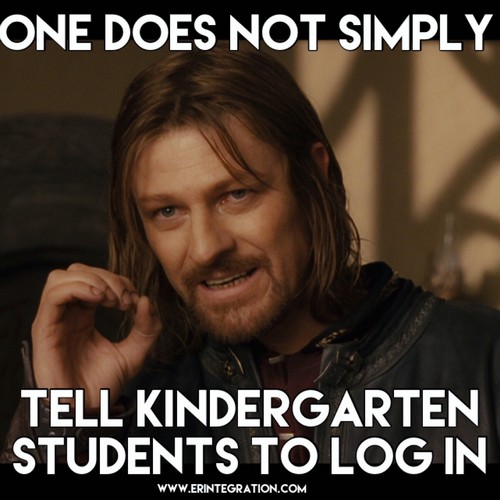
However, the reality of getting 20-25 kids logged into a Chromebook, an iPad, or even a program isn't easy.

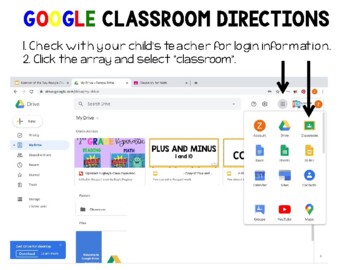
But that's just what teachers are doing! As noted in a recent spotlight, GPS Elementary teachers have laminated student login cards that use QR codes for ease of use, and Clever or Google single sign-on has been a game-changer.

Logging in

Blogger and Kindergarten teacher Della Larsen shares 4 tips for getting students logged in to Google Classroom faster in this older, but still good post with really useful tips for supporting students with keyboarding.

Educator and author Christine Pinto has a whole page devoted to supporting little learners with Google apps, including sections for logging into Chromebooks, tablets, etc. AND she has a large templates section on her blog for Google docs you'll love to share with students. (For example, check out these adorable Google sheets/graphing activities that match with seasons!)

Next Steps

If you are ready to "level up" your plans for blended learning with littles, there are more and more great resources being published daily. One that is highly recommended is a Podcast from the Modern Classrooms Project. While lengthy, this Kindergarten teacher shares ALL about her trials and triumphs as she moved her little learners from teacher-centered learning to self-guided learning using "Routines, Procedures, and Scaffolding"!

This echoes a lot of what is written about in this blog post from Edutopia, "Implementing Blended Learning With Pre-K Students", in which a Pre-K teacher shares how she uses technology and station rotations to have more time with small groups and meet the needs of her learners.

Check out a few of these teachers in action with these videos:

Making Self-Paced Learning Work with Younger Kids

Leah Frederick's Modern Classroom:


Looking for more--or doing something amazing? Share in the comments below!

Friday, September 30, 2022

🧠 Emojacognition!

Using Emojis for Student Self-Assessment

We talked a lot this August about the power of student self-assessment and metacognition. This strategy is so simple and so powerful, but it draws its power from regular practice.

So how do we make this easier to incorporate into your routine?

Use emojis! (And templates.)

https://shakeuplearning.com/blog/emoji-assessments-for-any-classroom-suls0168/
While many of us used emojis during the pandemic for SEL check-ins, emojis are so much more than faces. Sites like emojicopy.com let you search for icons that help emerging readers AND proficient readers quickly identify the choice they identify with, whether it be a stop sign🛑, a bright sun☀️, or big eyes ðŸ‘€!

Emojis can draw attention 📢 to ideas and more quickly communicate with a variety of learners.

Teachers in Kindergarten use emojis to support blended learning for emergent readers, along with audio and video.

Teachers of English Language Learners use this as a way to scaffold a "write-pair-share" conversations about their weekends. (You might want to give a table of emojis students can pick from to avoid inappropriate fruits!)

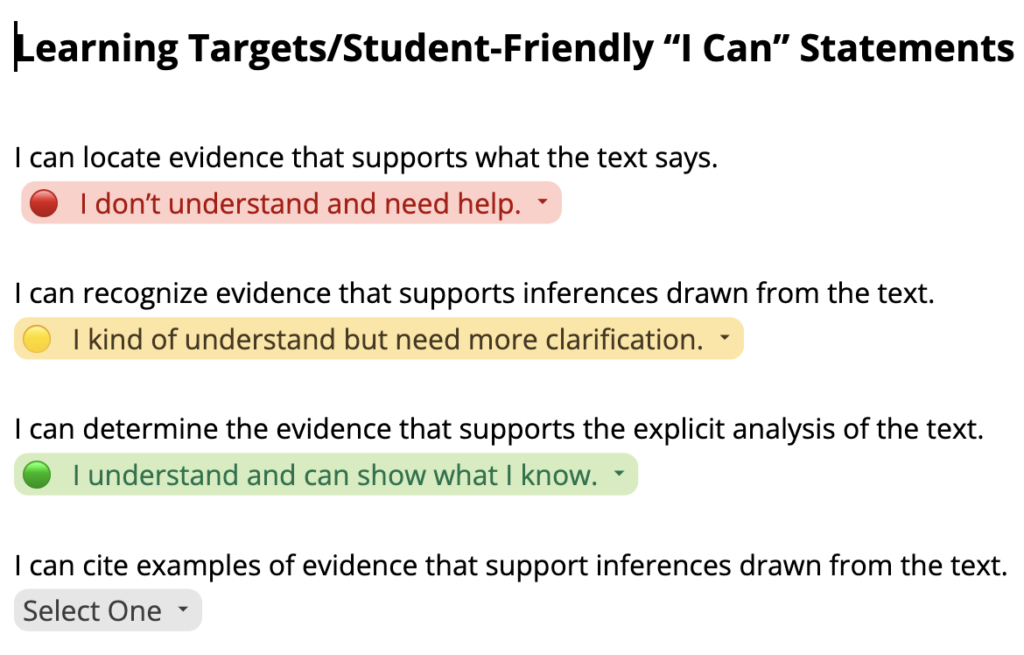
If you are looking for a digital exit ticket 🎫, you might draw inspiration from this doc template.

You can assign this to each student in Google Classroom with "Make a Copy for Each Student," and students can use the drop-downs you customize to answer. You can use different colors and symbols to help students quickly reflect on their learning or how well they met the student-friendly objectives for the day. (For more on using drop downs in Docs, check out the linked video!)

You could also use a Google form Exit Ticket with emoji or picture responses for reflection.

 (Click the link above to create a copy of a template with some pre-made options). The advantage is that you get a quick visualization of the data, showing which students did and didn't understand and supporting the development of student groups.

There are so many ideas for using emojis for student thinking and feedback. Let us know in the comments if you are using it!


Friday, May 27, 2022

End of the Year Technology Clean Up

It's hard to believe the school year is drawing to a close, but given that Chromebook collection is fast approaching for students, there are things for teachers and students to have on their collective radars now to ensure a smooth end of the year AND set you up for a smooth start to next year!


1. Prepare to Archive and Otherwise Secure your Google Classrooms 

Your Google drive will be FILLED with student files if you don't return work. If you've been holding on to student work all term (or all year), now is a good time to return those files. This will save your Google drive from clutter and help you find things faster in the future.

  • This Teaching Channel blog post walks you through the process and includes a helpful video tutorial!
  • One additional tip, for those of you worried about securing assignments for academic integrity reasons, you may also opt to unenroll students from classes. This blog post will explain and walk you through the process.

2. Support Students in Organizing their Google Drive

Once you return work to students, you could give students the opportunity to create a portfolio for their families OR students could organize their work into folders for school applications, Vision of the Graduate reflections, or any number of other reasons.

3. Organize Your Files without Creating Additional Clutter!

  • Use versioning to name this year's file without making copies that clutter your drive.
Instead of making copies, go into the Version History and name the current version. This way, you can have multiple versions of a test, assignment, handout, etc. that is customized based on your group of students, semester, etc. And the great part? You can go back and forth between named versions without losing any of the versions!

  • Place shared files in a shared drive--your team or department will thank you!

Thursday, May 5, 2022

Getting Organized with Google

 Teachers end of the year to-do lists can feel long, and while cleaning up is cathartic and important, it often feels overwhelming.

Thankfully, Google has added some tools that can make your digital clean-up easier.

Two tips teachers have shared as being game-changers involve Google Drive and documents.

1. Use advanced search to quickly find (and then organize) files.

The quick tip video from Google teacher guru Kasey Bell quickly shows how to use the Google search chips to quickly find that file you are looking for, even if you never put them into folders.

This is also a great way to find files "Shared with Me" that you need to add to your drive and organize into folders for easy use in the classroom. For more on this, check out the TLI Educational Technology page.

2. Use named versions to eliminate document overload.

Teacher Tech master Alice Keehler shares that naming versions of documents using version history is a great end-of-year clean-up strategy and a great habit to use all year long!

Many teachers "Make a Copy" of a document when they update it for 2021 or 2022, thinking they may someday want to revert back to the version from 2019. However, this leads to many nearly redundant files in your Drive...and confusion when trying to find "the right" version of the document!

Instead, when you go to update a document for the new year (or close out this year), go to "File," select "Version History" and name your version. This could be with the year, or even a longer descriptive title that indicates the changes made. 

Then, if you make changes and in a couple months or years want to revert back, you can simply "Restore" the desired version. 

This also helps with those users of hyperdocs, as the links in your document won't change. Additionally, Google Classroom teachers who want to "Reuse" assignments from year-to-year can avoid having to change up attachments, making the process even easier.


Wednesday, May 4, 2022

Fast Food Feedback: Make it Worth It!


Fast food is great because it is (usually) fast: as a consumer, you don't need to cook, wash dishes, or sometimes even get out of your car. However, if you just scarf down the food without tasting it, then you've wasted the experience.

Fast formative assessment is a little like that: if we don't take the time to "savor" that feedback, then  the effort of collecting the data was not worth it.

Most of our students are used to these faster computer-based assessments, whether in the Illustrative Math platform, on a Kahoot, or a teacher-made Google form. The benefit of having computer-based testing should be the ease of feedback: in mere moments, something that would have taken at least a half hour to mark has been scored and can be accessible to students for feedback, at least in terms of knowing what they got right and wrong.

So, how do we make students do more with that feedback than just look at the score?

Solution 1: Teacher-Made Groups
Look at the data and make some strategic decisions: are there questions that most students got wrong that warrant a whole class reteaching? Are there students in the class who got a commonly missed question right and could act as "experts" to help during a station rotation review activity? Are there groups of students who would benefit from small group re-teaching on a topic?

Solution 2: Student-Led Groups
Shift the responsibility to the students: Might you build in time for students to identify the top questions to review as a class? Might they work together to write explanations for the top (2, 3, 5?) questions they got wrong, but upon reviewing with peers, etc., they now know how to answer correctly? Might they have to share how they would do better on a similar question in the future, or write their own version of the question to show they understand?

What other solutions do you have for making students more responsible for using fast feedback?

Thursday, March 31, 2022

Maximize your ClassroomScreen

 You planned your lesson for students to work in groups. To do this, you need to sort students, set a timer, and keep students apprised of how their behavior is meeting with expectations.

ClassroomScreen can help you efficiently prepare for this work. 

It's easy to get started. You don't even have to create an account, though you can create a free account and login with Google to save your favorite name list (for easy grouping) and widget preferences.

Show the widgets you use most on any display screen. The app provides useful tools like timers, drawing tools, the random-name picker, and a favorite, the noise-level monitor. You can also embed media, like the videos for your favorite brain breaks. 

Access this anywhere. If your class goes to the library or a lab, this screen can pulled up quickly from any screen with an internet connection. 

There are so many uses for this tool!

If you haven't looked at this before, it's worth giving the free version a try. Let TLI know what you think of the tool, or if we can add any materials to our Educational Technology website to clarify how best to use it.


Friday, March 4, 2022

Put It on My Tab

Quick Tip: You've probably noticed that your Google docs (and other tools) have started suggesting the next few words to write. This "predictive text," like the suggestions on your phone, is a great time saver, but not everyone knows how to active it.


Here's how it works:

When you see the predictive text pop up (usually in a gray color), hit the "Tab" key. The text will fill in! If you don't want all of that text, you can backspace or just continue typing and the suggestion will go away.

If you want to turn it OFF (or turn it back on) in Google Docs, go to Tools in the menu bar, then select Preferences, and find Show Smart Compose Suggestions and unclick the check box! That’s all!

To see how this works, check out the video below, which also shows how you (or students) can use Speech-to-Text.

Side Tip: Predictive Text in the Google Search Bar

You might also note that suggestions pop up in the omnibar (the place where you put the URL). This is great for pulling up recent documents, etc. without going to your Google drive! 

However, if you want to turn this off, follow the directions from this Google Expert:

Please refer to this if you want to turn off predictive text.
  1. Go to the Chrome menu on the browser toolbar.
  2. Click Settings.
  3. Click Show advanced settings (on the bottom)
  4. In the Privacy section, deselect the "Use a prediction service to help complete searches and URLs typed in the address bar" checkbox
Have other features you want to turn on/off? Use the comments below or email TLI!

Thursday, February 24, 2022

(Ctrl) F that!


Quick Tip:

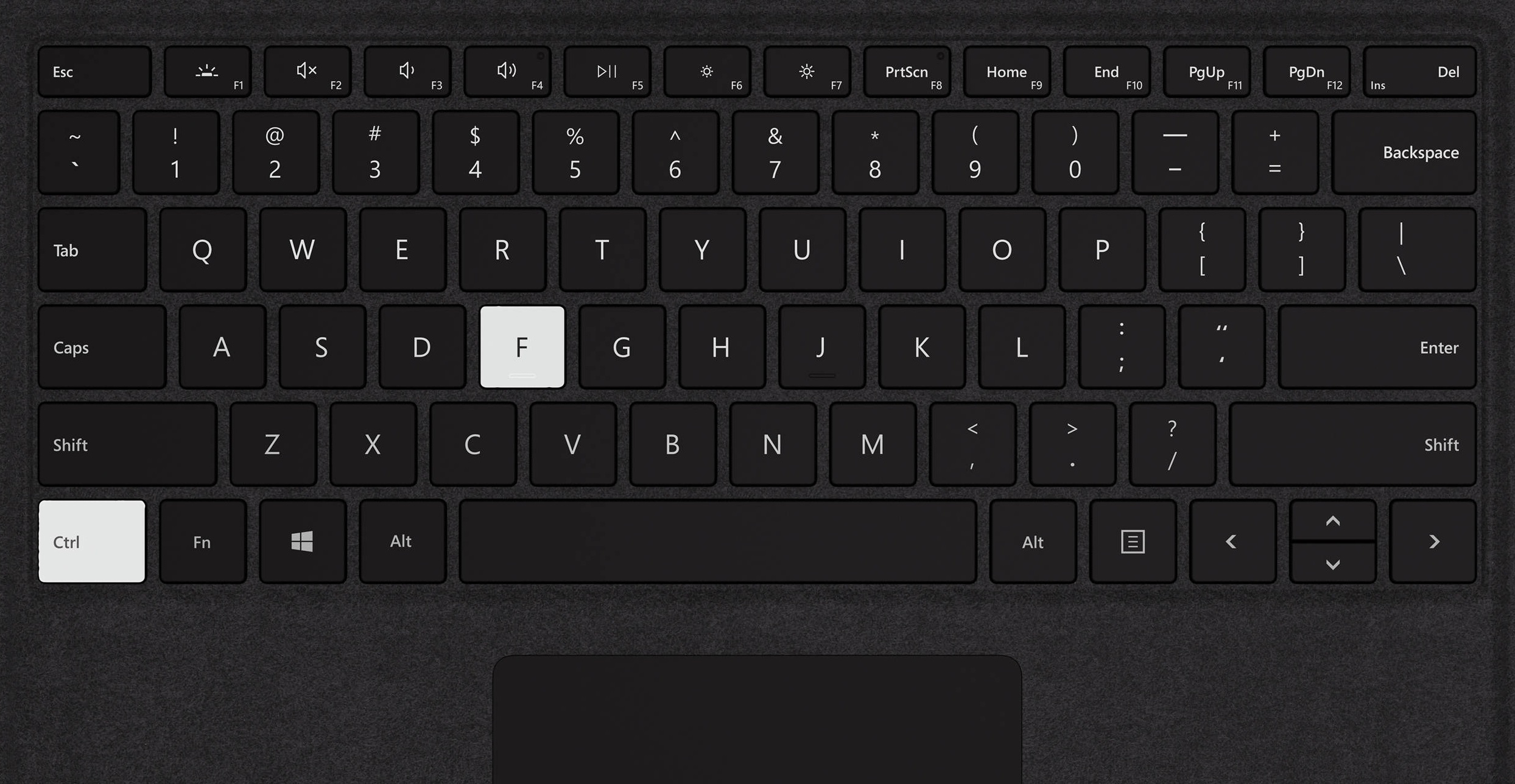
Ctrl+F is also known as the "Find" shortcut, and it allows you to open a search window in the page you have open on your browser--or in your Google document, PDF, etc. Type in the word (or part of the word) you want to find, and it will highlight the instances of that word on your page. 

There are many everyday uses for Ctrl+F that may make this a daily trick to use. If you are best described as an "okay" speller, using Ctrl+F to find and then REPLACE that word or name you repeatedly butchered can be a huge time saver. Or, if you tend to use the same word/phrase over and over again, you can find each instance and revise with a more colorful and accurate sentence!

Additional Uses: 

Ctrl + F is also valuable for those teaching reading or media literacy skills. The uses for this in the classroom are multiple, including the following:

Quickly evaluate a source for usefulness.
When researching, whether on a webpage or PDF, you can quickly see if the key word or phrase you are looking for is present--or how many times it appears. If it only shows up once, that might be an indication to move on...

Support students in identifying key words.
Sometimes students don't know whether to look up a word they don't know. A quick search for the word in the text will show the number of times it appears, and thus give them an indication of how important it is to define and understand.


Quickly find citations, etc.
Ctrl+F also works in Google documents! This time-saver is great for checking instances of a specific source cited or finding instances of the parenthesis ( on a page to count the number of parenthetical citations.

Check for plagiarism.
Quickly find key words or phrases that you suspect are copied. This is also a helpful tool for students to check that they have paraphrased appropriately!

Support students in evaluating sources for credibility.
Ctrl+F is great for finding key pieces of information fast, especially if you are practicing lateral reading and trying to confirm information found from another source.

In fact, there is a Canadian program called CTRL+F that has a free program for media literacy, including lessons, videos, examples, and assessments (pre/post) for students in Grades 7-12. For those familiar with the News Literacy Project and its Checkology curriculum for Grades 6-12, this is similar but more easily used in pieces--Google slides, paper handouts, and with no student data sharing--to suit your learners. If this is something you have been thinking about, check out the introductory video below:

How else have you used Ctrl+F in the classroom or in your teacher life to increase productivity? Let us know in the comments below!

Thursday, January 27, 2022

Technology Hacks, Especially for Littles: Pin a Shortcut

A few teachers have mentioned a stumbling block for blended learning has been the limitations of their students. It makes sense. If it takes 10 minutes for students to navigate to the website, then that's 10 minutes of lost instructional time. Teachers wonder, is it worth it?

But oftentimes the benefits of using the technology are great, and with a few tricks or hacks, teachers can speed up the process and reap those benefits. Here are a few, designed especially for younger learners or other students who might need more supports:

Issue: Students have trouble navigating to websites/apps on the device.

If students are using school devices, you might take a day to set up one of the hacks below. To do so, you would add a bookmark or shortcut to the "desktop" of the student device for the chosen webpage.

Hack #1: Use a Google Site for your class, and create a new "page" for the day.

Everything students need to open for the day is a click of the date away! This allows you to embed slides, videos, etc. so that students don't even have to open a new browser tab or window to view content. 

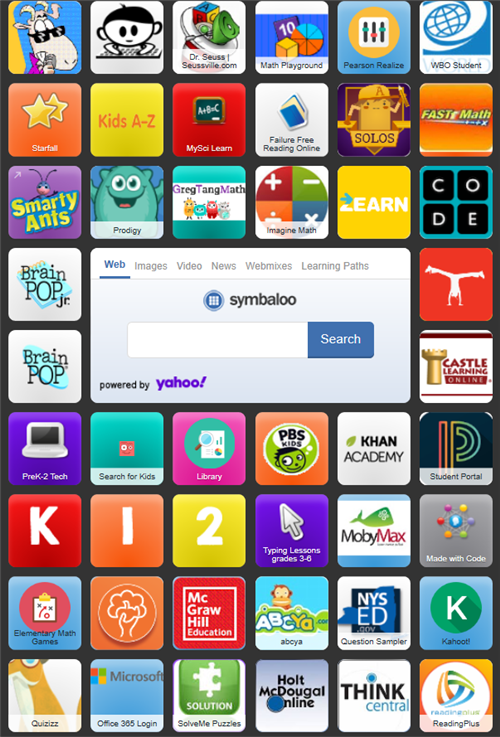
Hack #2: Use a tool like Symbaloo or Wakelet to curate the sites/apps that students use most frequently.

These curation tools are highly visual and are best if you have a few tools used frequently. You can create different boards/lists to help students access the apps they need. If it requires login, be sure to contact technology about how to use CLEVER for single sign-on.

These hacks also allow you to embed videos, such as those from YouTube, without all the other ads or suggested videos that can be distracting.


If you want help setting this up, contact the TLI department. For more ideas, keep checking the blog for the next installment of technology hacks!

Friday, January 21, 2022

Save Time Scoring to Spend Time on What Matters


Midterms at GHS have inspired several questions about ways to save time on scoring assessments. While there are limits to what multiple choice can assess well, questions that are carefully designed and target specific objectives can assess higher order thinking and provide teachers with the ability to provide students with fast feedback. 

Megan Faherty of Angela Watson's Truth for Teachers blog/podcast puts this well: "If you don't have time to grade it, students don't have time to learn from it."

There is so much research about the impact of feedback on student performance. But for fast feedback from these types of assessments to be meaningful, teachers need to plan for students to use it

Depending on the tools teachers use, there are many options for helping students review and use their feedback from assessments that involve limited choices.

A few ideas, such as those from "Getting Students to Engage with Feedback," 

  • "Make a connection between the expectations of an assignment and feedback. When I set an expectation, I explain how I will give feedback and the way students should apply the feedback to their work."
  • "Create opportunities for students to interact with feedback during class sessions."
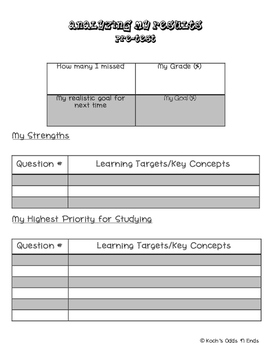
    • Students can work with peers who had similar challenges to determine what skill or concept was involved in the question troubled them, and think about what knowledge or strategies might help them in the future.
    • Teachers might also create specific plans for students to review questions or problems, recognize their strengths, and utilize resources to help address areas of struggle. Simply having students review incorrect responses and answering questions like, "Why is the correct answer better than the other options? Why did you think the answer choice selected was right? Can you find evidence for why it is wrong?" helps improve engagement with this work. 

This aligns with research that shows that "Short, low-stakes tests also help teachers gauge how well students understand the material and what they need to reteach. This is effective when tests are formative—that is, designed for immediate feedback so that students and teachers can see students’ areas of strength and weakness and address areas for growth."

Asking students to take the time to review not only saves you time, but then also leads to better results, especially if students know they can retest or they earn back credit for showing that they know the material via these test reflections.