Featured Post

Avoid Quarter 2 Blues: Save Time with a new Google Classroom

For those of you ending the quarter, now is the time to create a new Google Classroom for each of your classes. Organizing new classes will...

Showing posts with label Infinite Campus. Show all posts

Saturday, March 11, 2023

Infinite Campus: Use the Knowledge Base & Save time with Student Groups

 If you haven't gone into Infinite Campus's Community, you should check out the Knowledge Base. This menu provides tutorials for features that will streamline your work.
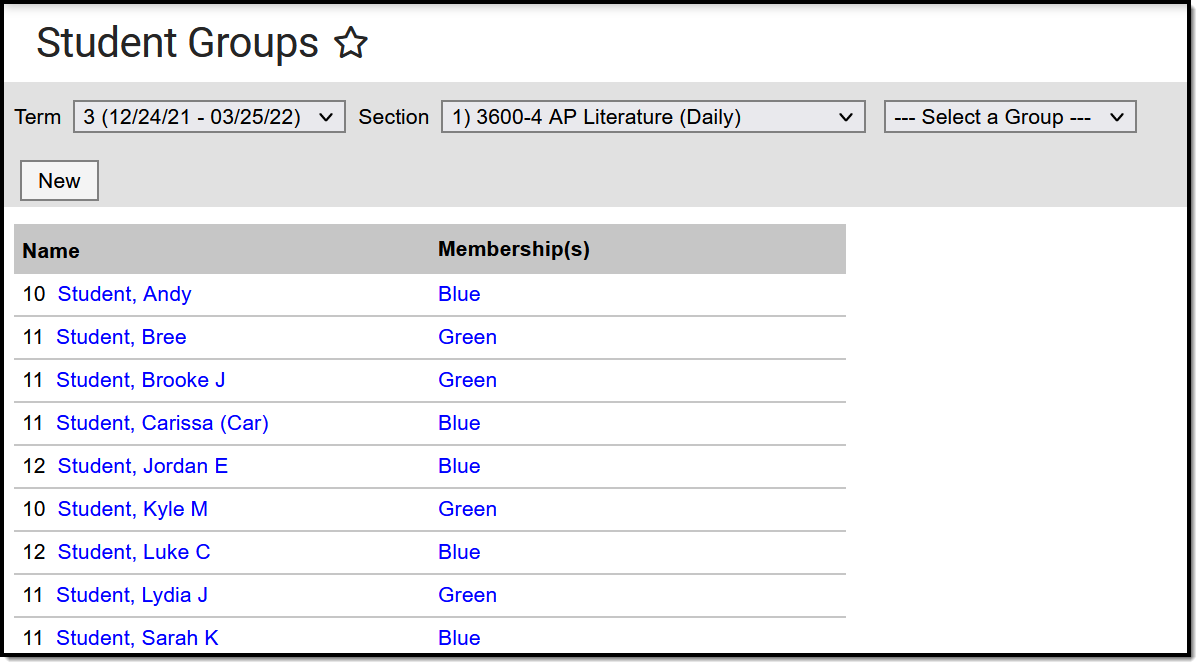
One such tool is the "Student Groups" option, which allows teachers to divide a class into small groups for an assignment or to simply have as a record to refer to for classroom activities. For example, you might create a roster of accelerated students who might benefit from more challenging small group work into a "Green" group, as well as students who need more support during reading into a "Blue" group. 

One big selling point, aside from the ability to quickly group students and create rosters, is for GMS/GHS teachers to adapt their gradebook at the same time:

"You can use student groups to give assignments to only a subset of students in a section. Once a group is created, you can select it in the Scheduling/Grading Alignment area of an assignment. The assignment only appears for the students in the selected group; all other students are automatically marked as exempt in the Grade Book."

You wouldn't need to take the time to duplicate the assignment or mark students as exempt--talk about a time saver! What's also great is that the differentiated assignment The link to the directions for Student Groups is here, though keep in mind you will have to login with your Infinite Campus credentials to access.

You can also save time adding assignments in gradebooks that cover students in the same course by using section groups. Infinite Campus shares that "groups make scoring assignments easier by combining matching assignments into shared columns in the gradebook."
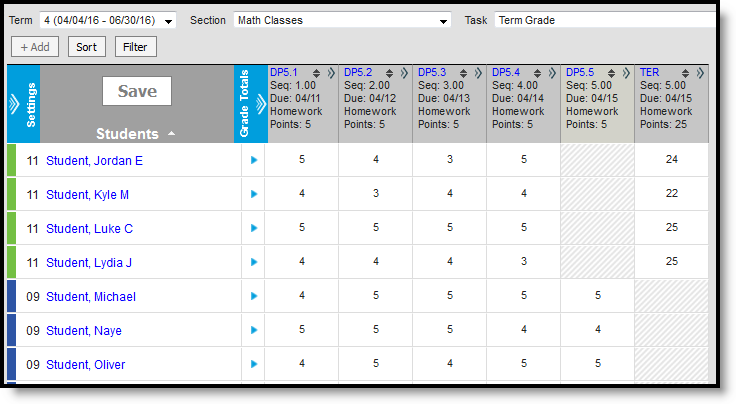
As you can see in the image to the left, the teacher in this example grouped all his math classes into a section called "Math Classes." Instead of toggling between gradebooks, he can create the assignment once for all of those groups, and then he can select that section to score all at once. You can see that the different class sections are denoted by colors (green and blue) on the left hand side.

The link to the directions for Section Groups is here, and again, you will have to login to Infinite Campus to access the directions, with the linked video tutorial and simulation at the bottom of the page.

Finally, you can modify due dates and details for groups using either of these section tools (and for individuals too! See this video for a how to.). 

Want support for setting up student groups? Contact _GPSTLI@griswoldpublicschools.org

Friday, January 21, 2022

Tools to Speed Up Grading (and Feedback)

In several posts on this blog, we talk about the value of fast feedback for student learning. So how do you do this in a way that is safe (remember CT's student data privacy rules) and speedy?

Enter tools like Google Forms and Zipgrade, which offer fast results and teacher-friendly data reporting.


Zipgrade has the advantage of working with paper. This is great if you have a longer multiple choice assessment (up to 100 questions) or secure test that wouldn't work well as a Google Form quiz OR if you don't have access to student devices. Essentially, you can print a premade scantron-style sheet to use for multiple choice, true/false, and matching questions--or create a custom one for gridded-numeric entry questions--and students will fill in their responses. The teacher then uses a smartphone or tablet with the app to scan the answer key and score the papers. A set of 20 sheets can be scored in under 2 minutes!

To see what this process looks like, watch the first few minutes of this video; this YouTuber also walks through the getting started process, which is regularly updated for iPhone and Android users on the Zipgrade website.

Zipgrade also quickly provides an overview of student scores, item analysis, and allows you to print individualized reports for students:

Class Overview Reporting
Item Analysis

Google Forms quizzes have the advantages of being completely free (Zipgrade has a limit of 100 scans/month in a free account), and offering a wider variety of question-types, embedded media, and seamless integration with Google Classroom.


The above video shows just some of the options for creating Google Forms quizzes and viewing data that will help you plan instruction and focus areas for students. 

What makes this an huge time-saver is the ability to work with Google Classroom and Infinite Campus gradebook sync to quickly pull the scores from the Form to the Classroom, and from the Classroom Gradebook to the IC Gradebook. This two minute process not only gives students quick feedback in Classroom (as you can enable them to view their quiz results), but also saves you time entering data.


Friday, November 12, 2021

Avoid Quarter 2 Blues: Save Time with a new Google Classroom

For those of you ending the quarter, now is the time to create a new Google Classroom for each of your classes. Organizing new classes will save you time in the long run and help you empower students.

If you use the sync function to pull grades from Classroom into Infinite Campus (a HUGE time-saver), creating a new course for each marking period is key to aligning those gradebooks. Here are the steps:

  • Step 1 - Create and configure a fresh NEW class
  • Step 2 - “Reuse” needed content from OLD class (Only pull ongoing assignments or essential materials)
  • Step 3* - Unlink old class; link new class to SIS   (Go to “settings” to link; this syncs to Infinite Campus!)
  • Step 4- Add your students
  • Step 5 - Archive--don’t delete-- your OLD class.

Additionally, this prevents students from trying to submit old work and removes clutter! Google Certified Trainer John R. Sowash shares the four main reasons to do this, along with a demonstration of Steps 1-2 and 4-5 in the video below:

It is also a good time to make sure you are posting EVERYTHING to Google Classroom. Sam Kary of The New EdTech Classroom makes that point that this saves you time in the long run, as when you go to reuse classrooms and posts in the future, these resources will be available: 


By spending a little time now, you will save BIG in the future!

Tuesday, September 14, 2021

Infinite Campus: Gradebook Groups

Has anyone been using "Student Groups" in the gradebook to support their differentiation? 

As we look to harness the full capability of this tool, we noted that "teachers can set up Student Groups, or teams, and create different assignments for each group. This allows teachers to differentiate instruction and graded work for a group of students in the same class." 

It is hard to try out tools when you don't have a gradebook, so if you are a teaching member of our staff, let us know if you are trying this (or are interested in trying this).