You planned your lesson for students to work in groups. To do this, you need to sort students, set a timer, and keep students apprised of how their behavior is meeting with expectations.
ClassroomScreen can help you efficiently prepare for this work.
It's easy to get started. You don't even have to create an account, though you can create a free account and login with Google to save your favorite name list (for easy grouping) and widget preferences.
Show the widgets you use most on any display screen. The app provides useful tools like timers, drawing tools, the random-name picker, and a favorite, the noise-level monitor. You can also embed media, like the videos for your favorite brain breaks.
Access this anywhere. If your class goes to the library or a lab, this screen can pulled up quickly from any screen with an internet connection.
If you haven't looked at this before, it's worth giving the free version a try. Let TLI know what you think of the tool, or if we can add any materials to our Educational Technology website to clarify how best to use it.
Who doesn't love attention for what they are doing well? When we build from our strengths, we build on a strong foundation.
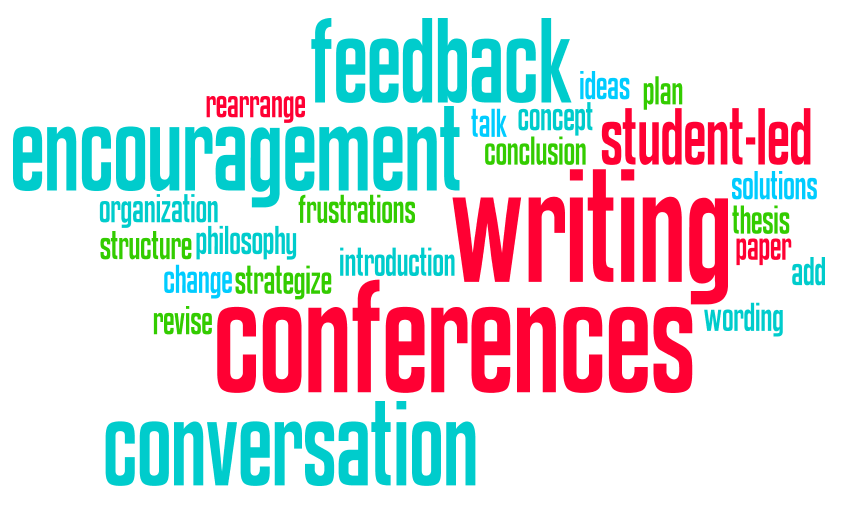
This came up as teachers on the district catalyst team recently discussed student-led writing conferences. If you are a teacher who has students write (and hopefully revise), this technique is worth a look.
Some of the Benefits:
Saves time
More effective feedback
More effective instruction
Instead of writing a bunch of comments that students may or may not read on their writing, the teacher has the STUDENTS identify what they want to focus on. This takes a few minutes of reflection for students, but saves the teacher HOURS of close reading student work. Plus, research shows that students often need support acting on written comments or they ignore them (often because they aren't timely or sufficiently helpful).
The conferencing technique calls for teachers, instead of writing all over the student work, to devote five minutes to each student in class. During that 5 minute conference, the teacher and student review the parts of the assignment that the student identifies as wanting feedback on. Feedback works best when we also collect it from students (see Hattie, J (2009). Visible Learning: A synthesis of over 800 meta-analyses relating to achievement. New York: Routledge). The student sets the goal based on the learning target(s), making it all the more meaningful to them, and then has time to act on that feedback.
But the addition that made this MOST effective in practice was not just asking students what they wanted to discuss for improvement, but to start by asking students to share what they were most proud of.
This had several benefits.
1. It alerted the teacher to sensitive topics. If a student was really proud about a paragraph they wrote that the teacher would have covered in real or digital red ink, then the teacher might approach feedback differently. It's hard to focus on the good when your pride and joy just got trashed.
2. It gives a snapshot of the student's level of understanding. If students are accurately identifying the good in their work, that can be valuable even for students who already don't have a lot to work on. Likewise, if a student identifies something good that isn't really great, the teacher then has a door open to addressing the misconception.
3. It gives a starting point for students who THINK they have nothing to work on. One question that was asked is what to do if students come to the conference and think everything is great. (Or they want to avoid the conference, so they claim it is great.) Asking someone what they are proud of is a non-threatening question that opens the door to adding more...rather than saying a student needs to "fix this" or throw things out. Many students will be open to feedback when the discussion starts with what is good.
And this makes sense, when we link this to what we know about behavior-specific praise being more powerful than corrective feedback in terms of changing behaviors. Who doesn't want to keep doing what earns them accolades?
If you want to know more about how student-led conferencing can work for you or for assignments other than writing, contact TLI, and we'd be happy to provide you with resources or help you co-plan this activity for your students.
A recent GMS lesson reminded us of how powerful, flexible, and relatively low-prep hexagonal thinking is as a tool/strategy for teaching and learning.
What is Hexagonal Thinking?
Maybe you caught the Cult of Pedagogy post on Hexagonal Thinking last year and thought, that looks cool, but I'm not in a place to cut out a bunch of paper hexagons right now. Or maybe you haven't had time to read through the variations and ideas, and now that you have seen people using this tool, you are wondering how to make it work for you. (If you want to see how hexagonal thinking works in detail, this post is so good!)
Why would I use Hexagonal Thinking?
If you haven't tried it, there are so many research-based reasons to think about using hexagonal thinking as an activity for review, formative assessment, or even summative assessment in your classroom.
It uses manipulatives (physical or digital)
It encourages academic conversation and collaboration
It elicits higher order thinking
It calls for identifying similarities and differences
It is highly visual and encourages students to "build" a graphic organizer
It supports long-term learning
Examples and Templates
The Cult of Pedagogy post links to many resources for physical and digital templates and examples. There are tutorials for creating digital versions of hexagonal thinking, but if you really want to save time, try starting with this Google Slides template/history example. If you are looking for more in your content area or grade level, you might check out some more examples:
Quick Tip: You've probably noticed that your Google docs (and other tools) have started suggesting the next few words to write. This "predictive text," like the suggestions on your phone, is a great time saver, but not everyone knows how to active it.
Here's how it works:
When you see the predictive text pop up (usually in a gray color), hit the "Tab" key. The text will fill in! If you don't want all of that text, you can backspace or just continue typing and the suggestion will go away.
If you want to turn it OFF (or turn it back on) in Google Docs, go to Tools in the menu bar, then select Preferences, and find Show Smart Compose Suggestions and unclick the check box! That’s all!
To see how this works, check out the video below, which also shows how you (or students) can use Speech-to-Text.
Side Tip: Predictive Text in the Google Search Bar
You might also note that suggestions pop up in the omnibar (the place where you put the URL). This is great for pulling up recent documents, etc. without going to your Google drive!
Google Classroom is amazing for so many reasons, but if you want to give parents (or SST) a progress report of Google Classroom assignments, which may include tasks that aren't reflected in the gradebook because you are looking at completion, you need a workaround.
This blog post shows you how to download a sheet from your Google Classroom gradebook.
Now, to make a simple single student progress report, you can do the following:
Create a new filter view.
Select only the student/data you want.
Print! (Print to PDF to attach to an email)
Our video tutorial shows how, plus how you might use this to share notes about student progress.
Let TLI know if we can help, and happy conferencing!
(PS: If you are curious about other tools that work with Google Classroom, check out this demo from Schoolytics. It isn't currently an approved tool at GPS, but if you want to see more about what it can do, contact TLI.)
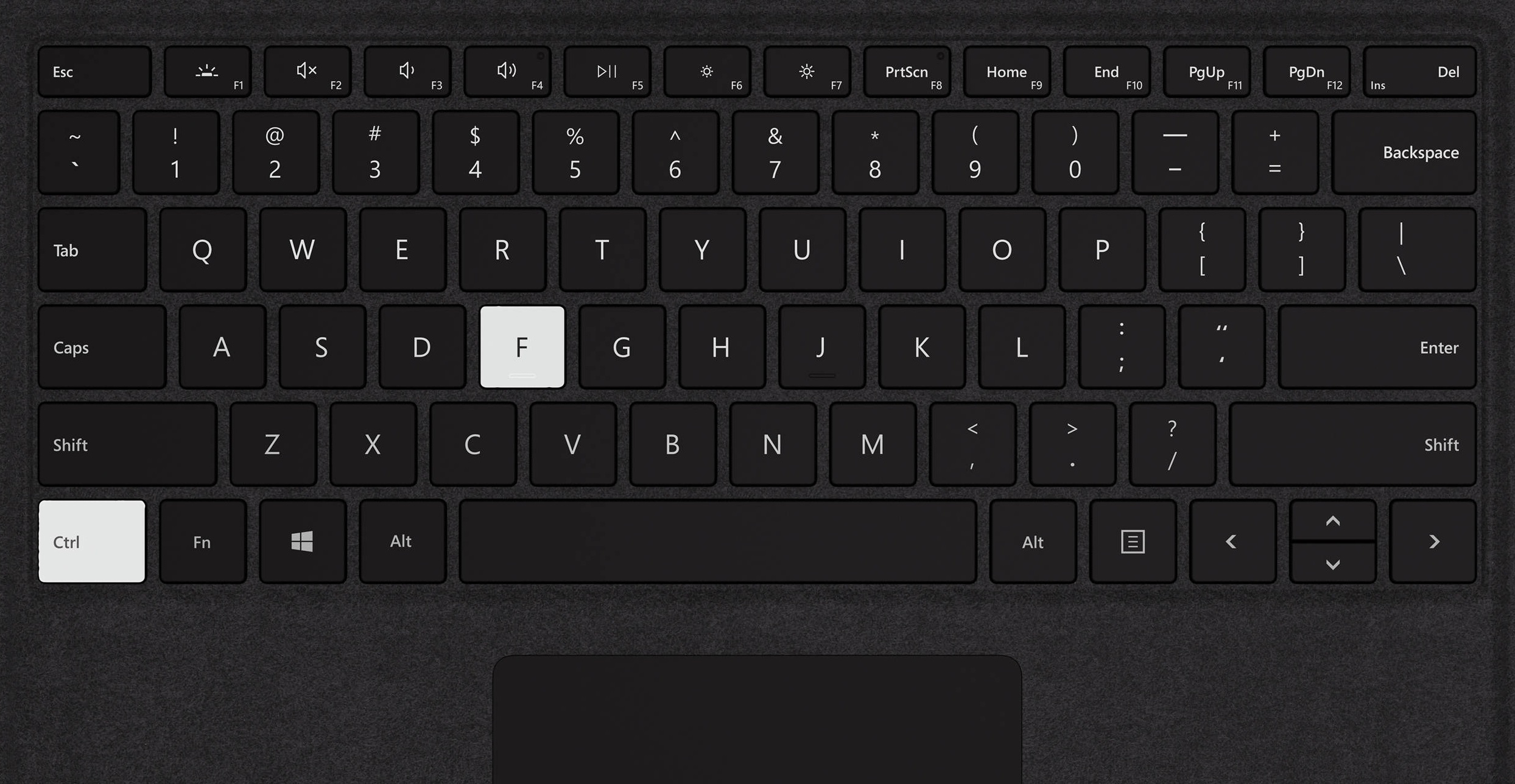
Ctrl+F is also known as the "Find" shortcut, and it allows you to open a search window in the page you have open on your browser--or in your Google document, PDF, etc. Type in the word (or part of the word) you want to find, and it will highlight the instances of that word on your page.
There are many everyday uses for Ctrl+F that may make this a daily trick to use. If you are best described as an "okay" speller, using Ctrl+F to find and then REPLACE that word or name you repeatedly butchered can be a huge time saver. Or, if you tend to use the same word/phrase over and over again, you can find each instance and revise with a more colorful and accurate sentence!
Additional Uses:
Ctrl + F is also valuable for those teaching reading or media literacy skills. The uses for this in the classroom are multiple, including the following:
Quickly evaluate a source for usefulness. When researching, whether on a webpage or PDF, you can quickly see if the key word or phrase you are looking for is present--or how many times it appears. If it only shows up once, that might be an indication to move on...
Support students in identifying key words. Sometimes students don't know whether to look up a word they don't know. A quick search for the word in the text will show the number of times it appears, and thus give them an indication of how important it is to define and understand.
Quickly find citations, etc. Ctrl+F also works in Google documents! This time-saver is great for checking instances of a specific source cited or finding instances of the parenthesis ( on a page to count the number of parenthetical citations.
Check for plagiarism. Quickly find key words or phrases that you suspect are copied. This is also a helpful tool for students to check that they have paraphrased appropriately!
Support students in evaluating sources for credibility. Ctrl+F is great for finding key pieces of information fast, especially if you are practicing lateral reading and trying to confirm information found from another source.
In fact, there is a Canadian program called CTRL+F that has a free program for media literacy, including lessons, videos, examples, and assessments (pre/post) for students in Grades 7-12. For those familiar with the News Literacy Project and its Checkology curriculum for Grades 6-12, this is similar but more easily used in pieces--Google slides, paper handouts, and with no student data sharing--to suit your learners. If this is something you have been thinking about, check out the introductory video below:
How else have you used Ctrl+F in the classroom or in your teacher life to increase productivity? Let us know in the comments below!
February is always the longest short month, but this year feels harder in many ways for teachers. While there are no miracle cures, one step teachers can take to enhance teacher well-being AND student well-being is finding a balance with our assignments.
While there is plenty of research that shows the value of feedback (and tips for how to make that feedback the best possible), there is little research that supports the value of grading for student learning or well-being. Research shows that grades MIGHTimpact student motivation positively if they are perceived as providing helpful feedback, but on the whole:
"Grades did not enhance academic motivation. Instead, grades enhanced anxiety and avoidance of challenging courses. In contrast, narrative evaluations supported basic psychological needs and enhanced motivation by providing actionable feedback, promoting trust between instructors and students and cooperation amongst students."
So, what do we as teachers do, when the reality is that grades are expected and still carry importance in the wider world?
"A few years ago, I hit a breaking point. My grades didn’t feel like an accurate reflection of my students’ skills, and I was spending hours wading through paperwork instead of designing dynamic learning experiences for my students. Now, when I work with teachers, I encourage them to ask these questions: What is the purpose of this work? Why am I grading this?"
Catlin found that a few changes helped her spend MUCH LESS TIME grading, shift her practice to more time spent in class on feedback, reflection, and setting goals for learning, and find MORE MEANING in the time she spent giving feedback. She shares the following helpful flowchart in her blog:
If this seems interesting, take 15 minutes to check out the blog and podcast. Let TLI know if you want to chat about how you might strike this balance in your classroom!
A few teachers have mentioned a stumbling block for blended learning has been the limitations of their students. It makes sense. If it takes 10 minutes for students to navigate to the website, then that's 10 minutes of lost instructional time. Teachers wonder, is it worth it?
But oftentimes the benefits of using the technology are great, and with a few tricks or hacks, teachers can speed up the process and reap those benefits. Here are a few, designed especially for younger learners or other students who might need more supports:
Issue: Students have trouble navigating to websites/apps on the device.
If students are using school devices, you might take a day to set up one of the hacks below. To do so, you would add a bookmark or shortcut to the "desktop" of the student device for the chosen webpage.
Everything students need to open for the day is a click of the date away! This allows you to embed slides, videos, etc. so that students don't even have to open a new browser tab or window to view content.
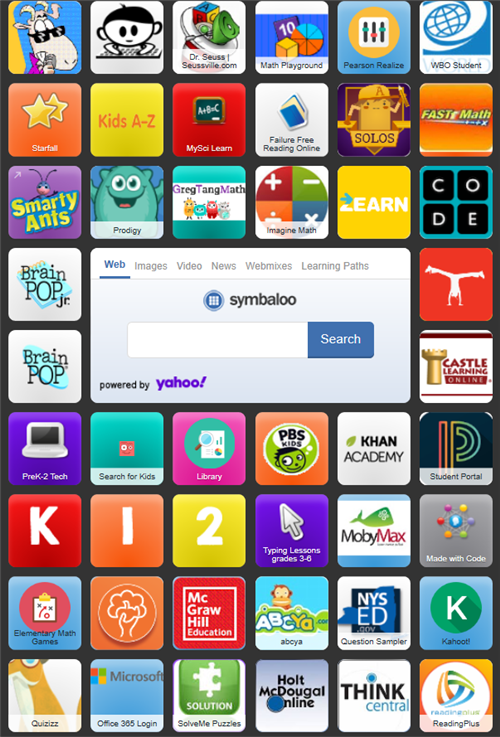
Hack #2: Use a tool like Symbaloo or Wakelet to curate the sites/apps that students use most frequently.
These curation tools are highly visual and are best if you have a few tools used frequently. You can create different boards/lists to help students access the apps they need. If it requires login, be sure to contact technology about how to use CLEVER for single sign-on.
James Clear's book Atomic Habits has been popping up all over the place lately. (It has been the subject of a series of Teaching to the Top Podcasts, which are great if you are looking to build some new habits.) The basic thesis is that small changes or actions that we take can have a massive impact on our progress.
This made us think about the power of self-talk and of habits in how we approach our classrooms. If one says I'm "not a touch-feely kind of teacher," then that person is creating a self-fulfilling prophecy. With that said, just reframing my self-talk isn't enough. If we really want to connect more with kids, then we need to think about the habits we can create to make this happen.
The way to "become" someone is to do it. Habits change beliefs. Habits matter.
This was echoed in a recent blog post from Dave Stuart Jr, which was about creating the habit of connecting with students each day. (If you haven't read his strategy for Moments of Genuine Connection, it's worth the look.) He suggests using a roster, a clipboard, and a pen to literally "check" when connecting to students. And this connects to one of our district goals for SEL, as one of the best "habits" we can create is to give behavior-specific praise to our students.
And perhaps find a teaching partner to hold you accountable, not with carrots or sticks, but with celebration and encouragement. If you miss your goal one day, your partner can encourage you to make up for it with more praise the next day, or remind you to give yourself a day of grace.
And once you meet that goal, say for a full week of school, then maybe you set your sights at two weeks, and onward and upward from there.
Midterms at GHS have inspired several questions about ways to save time on scoring assessments. While there are limits to what multiple choice can assess well, questions that are carefully designed and target specific objectives can assess higher order thinking and provide teachers with the ability to provide students with fast feedback.
There is so much research about the impact of feedback on student performance. But for fast feedback from these types of assessments to be meaningful, teachers need to plan for students to use it.
Depending on the tools teachers use, there are many options for helping students review and use their feedback from assessments that involve limited choices.
"Make a connection between the expectations of an assignment and feedback. When I set an expectation, I explain how I will give feedback and the way students should apply the feedback to their work."
"Create opportunities for students to interact with feedback during class sessions."
Students can work with peers who had similar challenges to determine what skill or concept was involved in the question troubled them, and think about what knowledge or strategies might help them in the future.
Teachers might also create specific plans for students to review questions or problems, recognize their strengths, and utilize resources to help address areas of struggle. Simply having students review incorrect responses and answering questions like, "Why is the correct answer better than the other options? Why did you think the answer choice selected was right? Can you find evidence for why it is wrong?" helps improve engagement with this work.
This aligns with research that shows that "Short, low-stakes tests also help teachers gauge how well students understand the material and what they need to reteach. This is effective when tests are formative—that is, designed for immediate feedback so that students and teachers can see students’ areas of strength and weakness and address areas for growth."
Asking students to take the time to review not only saves you time, but then also leads to better results, especially if students know they can retest or they earn back credit for showing that they know the material via these test reflections.
In several posts on this blog, we talk about the value of fast feedback for student learning. So how do you do this in a way that is safe (remember CT's student data privacy rules) and speedy?
Enter tools like Google Forms and Zipgrade, which offer fast results and teacher-friendly data reporting.
Zipgrade has the advantage of working with paper. This is great if you have a longer multiple choice assessment (up to 100 questions) or secure test that wouldn't work well as a Google Form quiz OR if you don't have access to student devices. Essentially, you can print a premade scantron-style sheet to use for multiple choice, true/false, and matching questions--or create a custom one for gridded-numeric entry questions--and students will fill in their responses. The teacher then uses a smartphone or tablet with the app to scan the answer key and score the papers. A set of 20 sheets can be scored in under 2 minutes!
To see what this process looks like, watch the first few minutes of this video; this YouTuber also walks through the getting started process, which is regularly updated for iPhone and Android users on the Zipgrade website.
Zipgrade also quickly provides an overview of student scores, item analysis, and allows you to print individualized reports for students:
Class Overview Reporting
Item Analysis
Google Forms quizzes have the advantages of being completely free (Zipgrade has a limit of 100 scans/month in a free account), and offering a wider variety of question-types, embedded media, and seamless integration with Google Classroom.
The above video shows just some of the options for creating Google Forms quizzes and viewing data that will help you plan instruction and focus areas for students.
What makes this an huge time-saver is the ability to work with Google Classroom and Infinite Campus gradebook sync to quickly pull the scores from the Form to the Classroom, and from the Classroom Gradebook to the IC Gradebook. This two minute process not only gives students quick feedback in Classroom (as you can enable them to view their quiz results), but also saves you time entering data.
In a recent post "Student Pathways into a Curriculum: Chaotic or Empowering," Benjamin Freud raises many questions we've heard from teachers about how we build student-centered curricula.
He introduces the challenge, which is that standards (and some other outside forces) dictate what we MUST teach students, but these skills and concepts themselves may not be innately interesting to our students. But, if we give students license to learn what they want to learn, then how will we know if they've learned what they need to learn? Some would argue that the more structure we put into curriculum, the better. The more common our activities and assessments, the more equitable the education. Correct?
Freud says,
"Careful! There is a bait and switch at play: in order not to see ourselves as one of those people who force curriculum down students’ throats, we defend our ways by saying we’re helping students, guiding them. “You’ll see,” we declare, “they’ll thank us for it one day when they realize that we were that inspiring figure who opened them up to the unknown world of calculating the angle of the refraction of light!” It’s all nicely brought together in a conscience-appeasing dictum. Our job is to introduce students to subjects they don’t know they love yet.
The problem is that all these good intentions can quickly lead us to teaching what the teacher is in love with, or worse, what the teacher somehow feels the students should love because that is what the teacher was told she should love back when she was at school. Good intentions gone astray. "
While the post raises more questions than it provides in answer, the post is timely as many teachers are thinking about revising and implementing curricula and performance tasks while working toward our Griswold Forward goals. Consider:
Are all of the tasks or topics that we think we "have to do" really mandatory? Or are they simply customary, a reflection of what past teachers said was important or what the individual teacher likes?
Can we provide flexibility in the content, process, or product for the unit while still meeting the spirit and rigor of the standards for our grade level and content?
Can we build our units around meaningful topics or questions that can be customized for student interest, but which are still manageable for a single teacher or team to monitor and implement?
Placing students at the center may mean leaving behind traditions and opening our minds to new texts, new activities, and new ways of structuring class time. If you are interested in looking for places in your curriculum to incorporate student-centered learning, check out this resource from Cult of Pedagogy that breaks down the steps for planning a unit around an authentic "task."
What questions or concerns do you have about project-based learning (or similarly, problem-based learning or inquiry-based learning)?
During the tough winter months, we can all use some play. Plus, who doesn't love activities that are FUN for kids, can be done at a distance, AND which are low-prep for teachers?
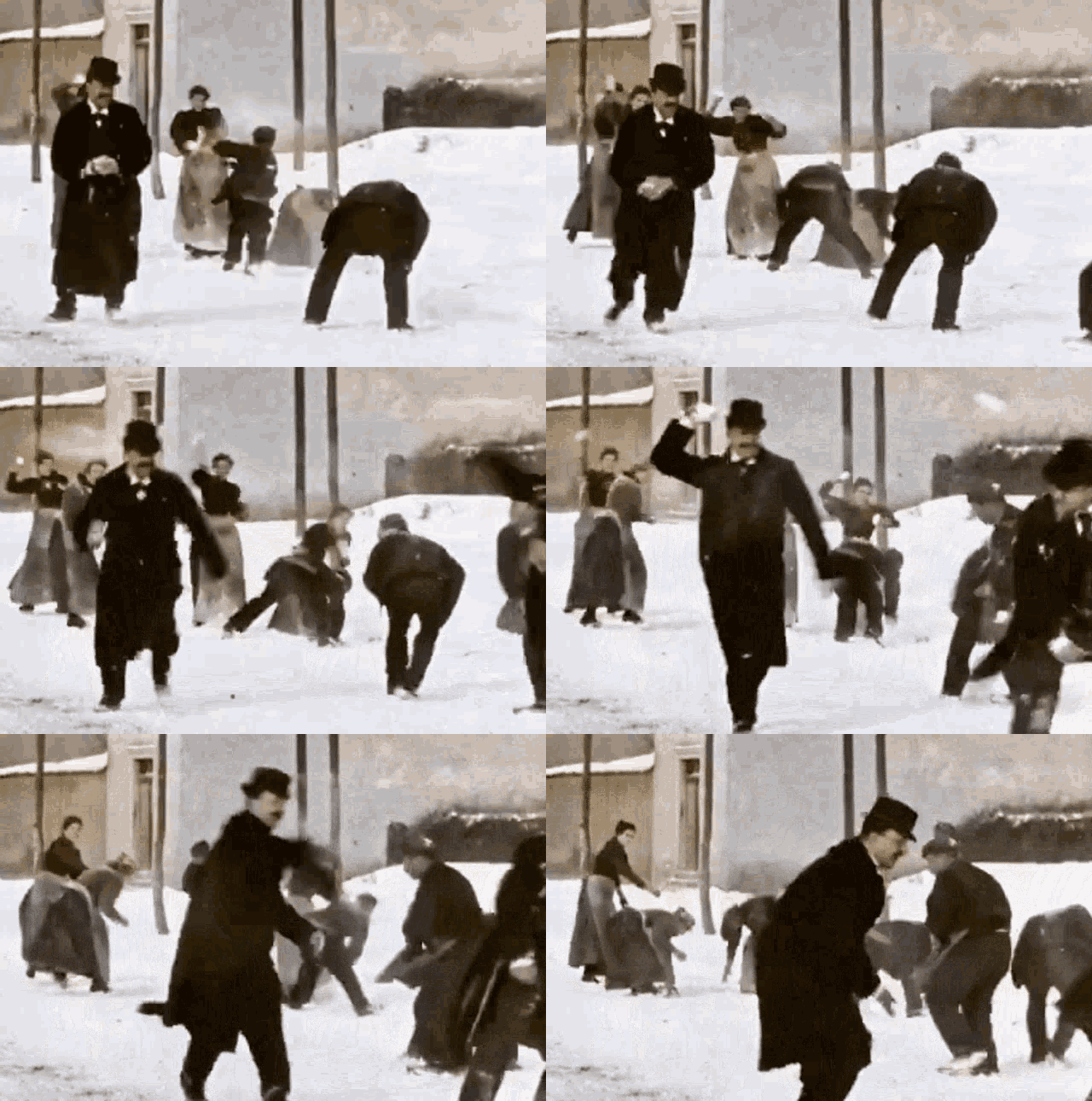
Enter: the snowball fight.
A short clip, originally captured by Louis Lumière in 1896, documents a rowdy snowball fight on the streets of Lyon, France.
Teachers often put pressure on themselves to come up with unique and creative activities for their classes. And while these memorable activities are valuable, there is also value to using routines and predictable strategies that put students in charge of the learning activity. While not exactly a routine, the snowball fight "strategy" can be deployed in many different ways, some of which are very low prep, and some of which can be deployed in the moment when you need (or want) to fill time with meaningful learning activities.
So what is it?
To have a snowball fight in the classroom, simply give each student a piece of paper, have students crumple the paper up, and then throw it around the room. After you stop the snowball fight, each student picks up one of the snowballs and is responsible for doing something with that sheet of paper. Then, students crumple up their snowball and play again!
Classroom Management Note: You will want to give clear guidelines to manage the mess and keep students safe (i.e. no throwing at the plants, no tight wads that would sting, don't throw at people, etc.). You might also use the balls in a manner more akin to bowling, avoiding throwing in rooms where kids can't handle airborne objects!
Teaching Made Practical clarifies that this strategy works well for retrieval/practice and sorting/comparison. Both of these are high-yield teaching practices!
"A Quick Review - On each snowball, I would write something that students should be able to answer very quickly like a math problem or a sight word. After the snowball fight, each student would quickly answer the question on their snowball before playing again.
Sometimes I would have students partner up to answer their questions, and other times I would have everybody bring their snowball to the carpet and they would share their answer one at a time so I could quickly assess everybody.
A Sorting/Categorization Activity - I would hang "category" signs around the room and each snowball would have a number or sentence that would fit in one of the categories. After the snowball fight, students would open their snowball and decide which category they belonged to."
The Teaching to the Top podcast shared several ideas for this strategy. With a little prep, the teacher can pass out papers with different problems, words, or topics related to the learning targets:
In math class, students might solve the problem on the first turn, and on the second turn, they might solve the problem a different way.
In English, the teacher might put different characters on paper, and students would add traits to the characterization (perhaps with evidence) on each throw.
Any class can use this to review content area vocabulary, adding a synonym, example, sentence, etc. to the paper each time they pick one up. You could even use a Freytag organizer and have students complete one part of it on each throw, exposing them to many words over the course of the game.
This could also be used for peer review of short drafts. For example, students might create a word problem that results in a given number as an answer, and their peers have to provide feedback on the quality of the problem. Students might likewise create sentences with certain characteristics, and their peer then "annotates" the sentence for the required features.
The Beakers and Ink blog shared this idea for adding more writing to the science classroom, but which would work across disciplines: ask students to write several sentences about what they just learned, watched, read about, etc. Then, snowball! Students pick up and read, maybe writing a response suggesting a change or addition. And they can repeat or return the ball to the owner.
"Not only are they practicing summarizing new information, but they are sharing and reading multiple summaries!"
This Edutopia video shows how this strategy can also be used for an end of class debrief, but with an SEL twist:
There are so many ways to use this strategy, many as simple as giving game guidelines and putting the students in charge of writing something on a piece of paper. While not fancy, this fun strategy can be used over and over again for high quality learning. How do you see this working in your classroom?
Research shows that adults and children are more likely to achieve their goals when they take steps like:
Put goals in writing
Commit (i.e., they must be motivated to complete that goal in a meaningful way)
Be specific (SMART goal setting is but one way to do this!)
Plan for/Have available systems for feedback and support
This can be powerful practice to support student executive functioning, which is not just important for life, but valuable to the success of practices involving blended learning.
As you think ahead and plan for lessons--and life--in the new year, how can you involve students in setting and meeting goals? How might you use these steps to meet your own goals?
For a fun virtual tour, check out the walk through of the White House holiday display for 2021. This could connect to technology, math, a creative writing prompt, discussion of the history of decorating the White House for the public, art analysis, and so much more!
Google Maps is a tool that not only provides 360 views that might compliment a unit of study, but the My Maps can allow you to create and share your own map with students, creating an annotated virtual tour of many spaces. And best of all, students can move through these at their own pace.
If you want some examples, email TLI :) Enjoy your trips!
GPS is a Canva partner! As an educator in our district, you can freely access Canva tools (and allow students to access them as well). This is a great time-saver if you value visual appeal or like more options when customizing classroom tools.
Editing in Canva is fairly straightforward if you are using the templates "as is", but there is a learning curve if you want to customize. If you have ever used photo editing or desktop publishing software, however, then this learning curve is small!
Canva also allows for download and import, if you prefer to keep all of your documents in the Googleverse, whether for your sanity or for ease of editing by students in Google Classroom.
If you haven't tried Canva, it is worth a 20 minute trial! Login with your GPS account and explore what the educational templates can offer you. For more ideas, visit DitchThatTextbook's post of 20 ideas for using Canva.
Why does so much of blended learning rely of videos? There are many great reasons to use video (see this TLI blog post for more of the research), but I wanted to share a few powerful reasons that future math teachers shared:
1. In essence, as Phil Michener, GHS intern and future math teacher, shared, the video is not replacing the teacher, but rather, multiplying the impact of the teacher, allowing him to be in multiple places at once. Although it seems counter-intuitive, the time spent preparing direct instruction in advance (or during class, if you have a student or a tripod-mounted camera recording you) frees the teacher from the front of the classroom and provides time to meet with students and personalize to meet their needs more efficiently.
2. Likewise, videos save time if students miss something. Here's an example that SHU teacher candidate Katherine Clyde wanted to share: Katie didn't think much of videos as a student; to her, they were something left for a substitute to show and unproductive. However:
"Last year, I was working one on one with a student while the teacher was going over exponents. She said any number to the exponent of 0 was always one, and then moved on to the next subject. My student got really upset because he did not understand why this was true and therefore struggled with grasping the concept and so the topic. I went to the internet and looked to see if I could find a better way to describe it and found a really great Khan Academy video on how that math worked. I showed it to my student and he immediately connected with it. He went from not even trying because he couldn’t grasp it, to totally on top of it because the video helped so much. The video was only about three minutes long and it made a big difference in this student’s learning."
Videos meet the needs of many learners, and not just students who regularly need a slower pace. In fact, videos can allow students who are ready to move faster to go ahead, rather than disengage waiting for other members of the class. Additionally, learners who might need or enjoy extra challenge can be given the opportunity to make their own instructional videos, not only providing teachers with more evidence of learning, but potentially providing more support for their peers.
Thinking about using a video to give you more time to connect with students or give students more control over the pace of their learning? Check out these tips (credit to Edutopia for many!):
Be selective and clear on your purpose—that will help you determine what clip to show or what content to film--and how to frame it for students.
A good rule is a video should be no longer than the # of years a student has been in school...and 5 minutes or less is most impactful.
Provide a mission.Setting a goal for what students are about to watch will keep them accountable and attentive.
Give students time to reflect by encouraging them to pause (or using a tool like EdPuzzle that forces pauses) and then providing time to discuss, record notes, etc.
Turn on closed captioning. Students can read along as they watch.
There's an old saying along the lines of "you don't fatten up a pig by weighing it." Usually this is said in the context of standardized testing, making the point that we shouldn't sacrifice instructional time in favor of testing time, as we need to "feed" students knowledge for them to grow.
But if we extend this analogy, while we might give a pig food to eat, ultimately it has the choice whether to ingest it. Likewise, that food might not be what that pig needs to gain the weight it needs in a timely way. Just putting food in front of the pig doesn't guarantee a good outcome.
And to be clear, students are
certainly NOT pigs.
So, how do we recognize what is
enticing, helpful, etc. for students? It is by continuously evaluating our
actions and our students response to them, and having conversations around this evidence. This is in alignment with recent
findings about the best way to boost teacher efficacy: seeing actual
improvement in students’ learning as a result of specific classroom practices.
In “The Past and Future of Teacher Efficacy”,
Thomas Guskey describes a study showing positive results for those teachers who give
frequent formative assessments and immediately follow up with students below
mastery (80%).
While assessment is not a goal unto itself and our students are certainly more than their numbers, frequent
"weighing" coupled with immediate feedback is the way to help
students AND teachers grow! The more frequently teachers receive targeted feedback
on student performance in direct response to their lessons, and the more they
provide targeted feedback to students in return, the better.
So, how can you do this easily?
A favorite strategy is to use "piles" for things like entry or exit tickets. Rather than spend time grading formative assessments, teachers sort the assignments into stacks--perhaps students who fully, kind of, or don't "get it"--and then plan to follow up with small groups based on which students need what supports. Using Google forms or even Kahoots can quickly provide this data too!
If you feel the need to provide detailed feedback or examples, commit to a few things to share and reuse! You could use Mote to provide audio feedback--if you use Google Classroom, you can save detailed feedback in the comment bank--and quickly insert/reuse the file. Provide a few minutes in class for students to listen, reflect, and plan to implement the changes for maximum impact.
The end of the marking period is a natural time for reflection. Teachers wonder what they and their students could have done differently to increase success. Were students working to their full potential?
This week Edutopia posted an article on "How to Counter Students' Learned Helplessness." Often the term learned helplessness is associated with students not trying unless a teacher helps, but the article expands upon how this may show up in the classroom:
Refusal to accept help, even if the teacher repeatedly offers it
Frustration leading to easily giving up
Disengagement from effort
Lack of motivation
Diminished self-worth and self-efficacy (such as providing a myriad of reasons why solutions will not work)
There were several practices shared to help address learned helplessness, but one that resonated was praising and encouraging effort (as opposed to achievement). Both our recent work with Erin Dunn and another recent Edutopia post have illuminated research about how powerful praise is for both student wellness and academic engagement. The takeaway:
While reprimands are sometimes unavoidable—and praise isn’t a panacea—working to raise the ratio of praise to reprimands is likely to improve student engagement and classroom productivity.
The power of praise, both in and out of the classroom, is backed by research, with a general goal of 5 praise statements to every 1 correction. So aside from being mindful to increase our praise of students' specific efforts, what else can teachers do to move their praise to correction ratio in the right direction?
Describe the observed behaviors and make a positive remark. (Ex: “You held the door open for your classmates on your own initiative, Savannah. Major props!")
Place sticky notes or posters where you can see them with reminders: “Emphasize effort,” “Praise diligence,” “Fail forward!" etc.
Work with students to set bite-size goals, and praise in a big way when they achieve each goal.
Consider keeping a chart to help you make an intentional effort to connect with and praise all students.
For those of you ending the quarter, now is the time to create a new Google Classroom for each of your classes. Organizing new classes will save you time in the long run and help you empower students.
If you use the sync function to pull grades from Classroom into Infinite Campus (a HUGE time-saver), creating a new course for each marking period is key to aligning those gradebooks. Here are the steps:
Step 1 - Create and configure a fresh NEW class
Step 2 - “Reuse” needed content from OLD class (Only pull ongoing assignments or essential materials)
Step 3* - Unlink old class; link new class to SIS (Go to “settings” to link; this syncs to Infinite Campus!)
Step 4- Add your students
Step 5 - Archive--don’t delete-- your OLD class.
Additionally, this prevents students from trying to submit old work and removes clutter! Google Certified Trainer John R. Sowash shares the four main reasons to do this, along with a demonstration of Steps 1-2 and 4-5 in the video below:
It is also a good time to make sure you are posting EVERYTHING to Google Classroom. Sam Kary of The New EdTech Classroom makes that point that this saves you time in the long run, as when you go to reuse classrooms and posts in the future, these resources will be available:
By spending a little time now, you will save BIG in the future!



/cdn.vox-cdn.com/uploads/chorus_asset/file/19731334/Screen_Shot_2020_02_19_at_12.51.47_PM.png)